

What is MCP?
The Model Context Protocol is a standardized way for AI agents to interact with external systems. MCP servers act as bridges between your agent and various services, enabling your AI to:- Access external data sources - Connect to databases, file systems, cloud storage, and APIs
- Integrate with platforms - Work with GitHub, Slack, Google Drive, Notion, and more
- Execute system operations - Run commands, query databases, manipulate files
- Maintain context - Keep consistent access to resources across conversations
Setup MCP Tab View
1
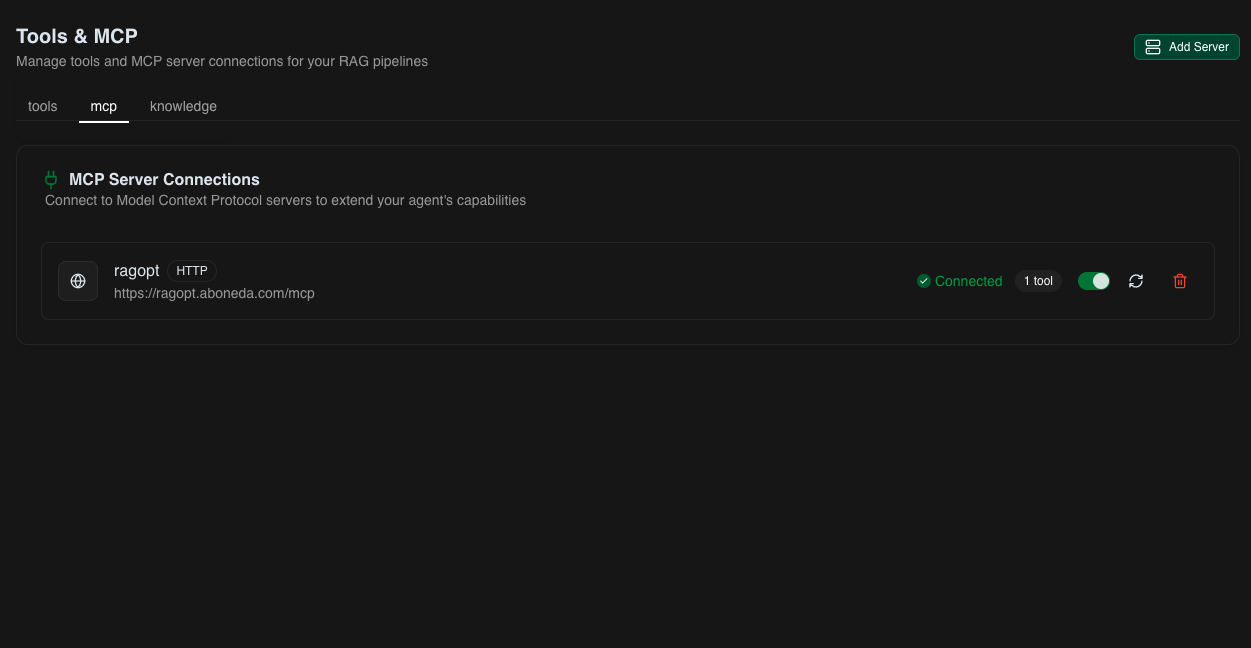
Navigate to MCP Tab View
Go to Tools & MCP Page to view and manage your connected servers.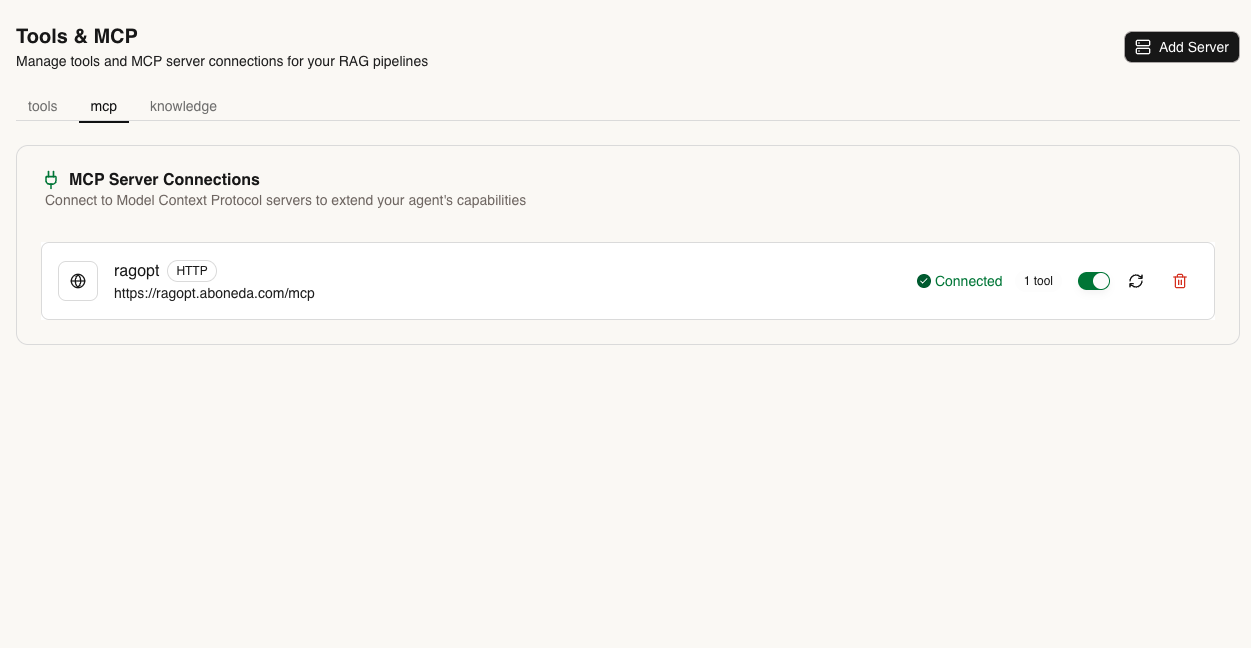
2
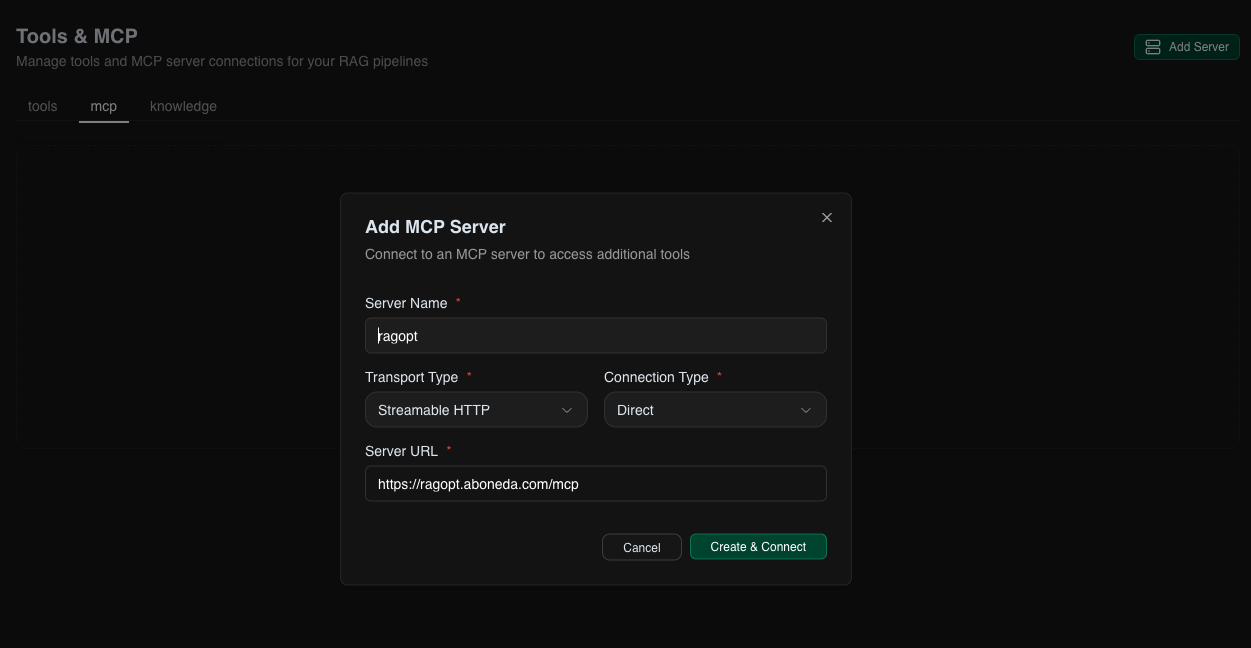
Add a New Server
Click Add Server and configure your MCP connection: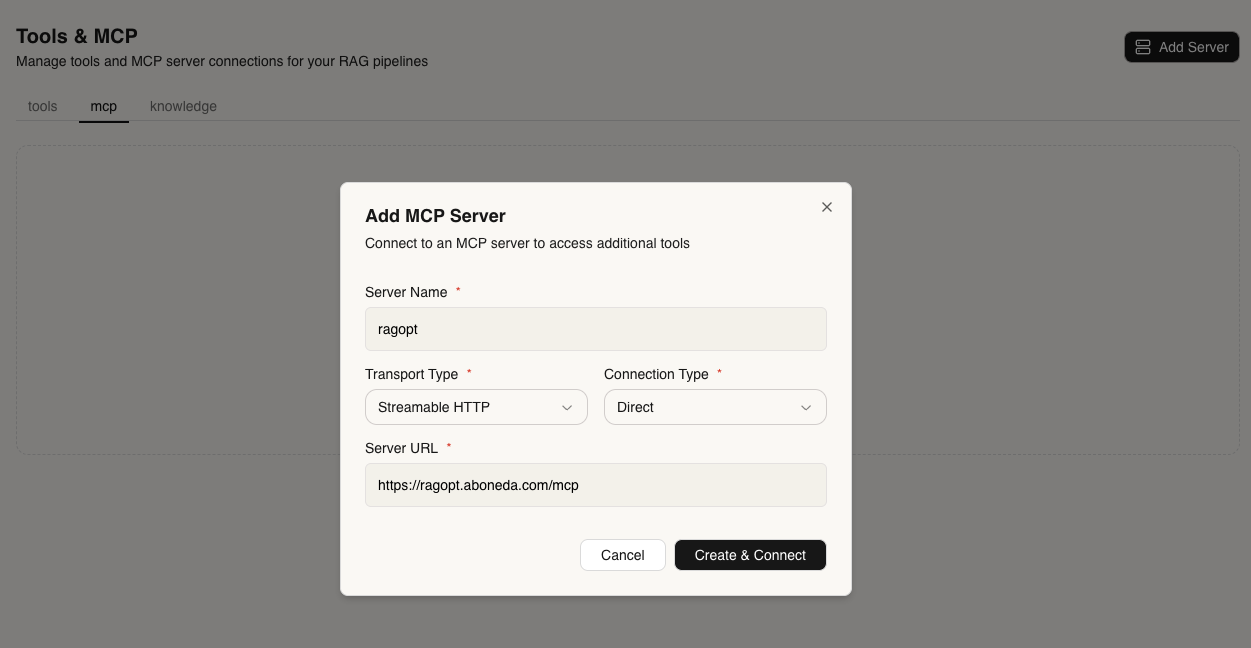
3
Enable for Projects
Once added, enable the MCP server for specific projects where you want your agent to have access to its capabilities.
4
Test Your Connection
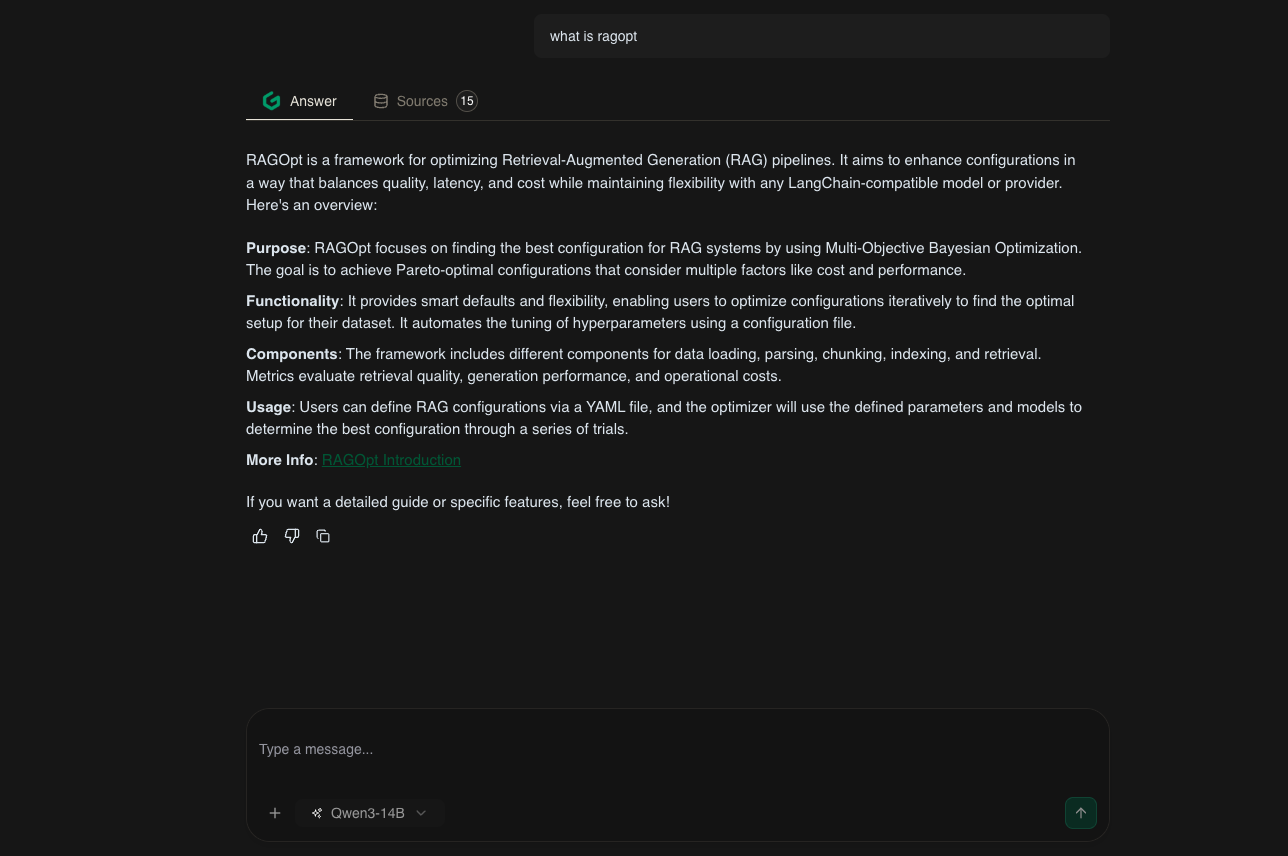
Start a conversation with your agent and ask it to use the connected service: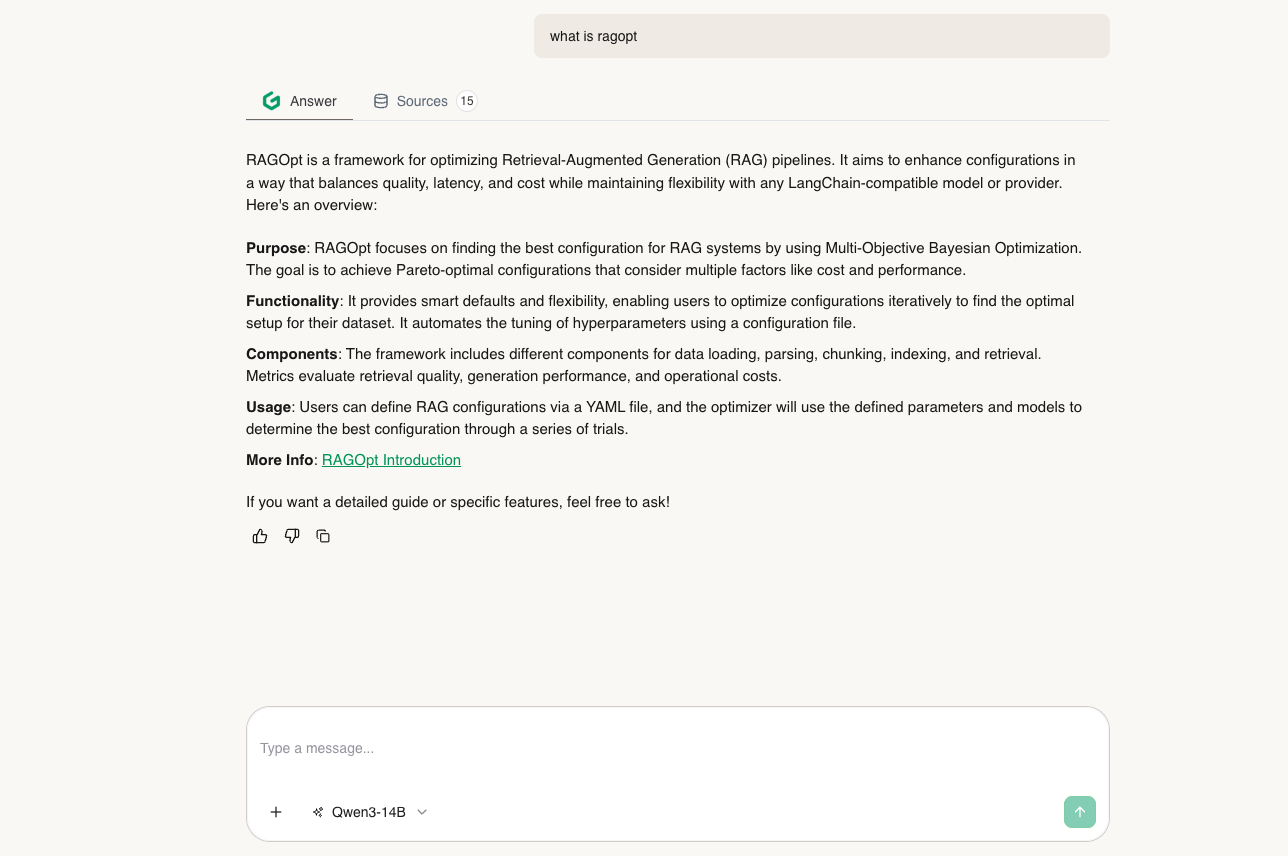
Using MCP Servers
Via UI
1
Connect Servers
Navigate to Tools & MCP Page and add the servers you need.
2
Enable for Projects
Select which projects should have access to each MCP server.
3
Chat Naturally
Your agent will automatically use MCP resources when they’re relevant to your conversation. No special commands needed.
4
Monitor Activity
Use the Sources tab to see which MCP servers were called and what data was accessed.
Via API
You can programmatically manage MCP servers through the API. Check the MCP API Reference for detailed documentation on:- Adding and removing servers
- Managing server configurations
- Enabling servers for projects
- Monitoring server status