> ## Documentation Index
> Fetch the complete documentation index at: https://gaia-docs.com/llms.txt
> Use this file to discover all available pages before exploring further.

# Quick Start

> Get started with GAIA AI in minutes

<Warning>
  The app is currently under development
</Warning>

## Installation

Choose your preferred method to run GAIA AI locally:

<Tabs>
  <Tab title="Docker (Recommended)">
    <Steps>
      <Step title="Requirements">
        * Git
        * Docker & Docker Compose ([Install here](https://docs.docker.com/get-docker/))
      </Step>

      <Step title="Clone the repository">
        ```bash theme={null}
        git clone https://github.com/AbdelrahmanAbounida/GAIA-AI.git
        cd GAIA-AI
        ```
      </Step>

      <Step title="Start GAIA AI">
        ```bash theme={null}
        docker-compose up
        ```
      </Step>

      <Step title="Open your browser">
        Go to `http://localhost:5679`
      </Step>
    </Steps>
  </Tab>

  <Tab title="Local Development">
    <Steps>
      <Step title="Requirements">
        * Node.js 18+
        * pnpm
      </Step>

      <Step title="Clone and install">
        ```bash theme={null}
        git clone https://github.com/AbdelrahmanAbounida/GAIA-AI.git
        cd GAIA-AI
        pnpm install
        ```
      </Step>

      <Step title="Setup database">
        ```bash theme={null}
        cd packages/db
        pnpm run generate
        pnpm run migrate
        cd ../..
        ```
      </Step>

      <Step title="Start development server">
        ```bash theme={null}
        pnpm run dev
        ```
      </Step>

      <Step title="Open your browser">
        Go to `http://localhost:3000`
      </Step>
    </Steps>
  </Tab>
</Tabs>

***

## Create Your First Project

<Steps>
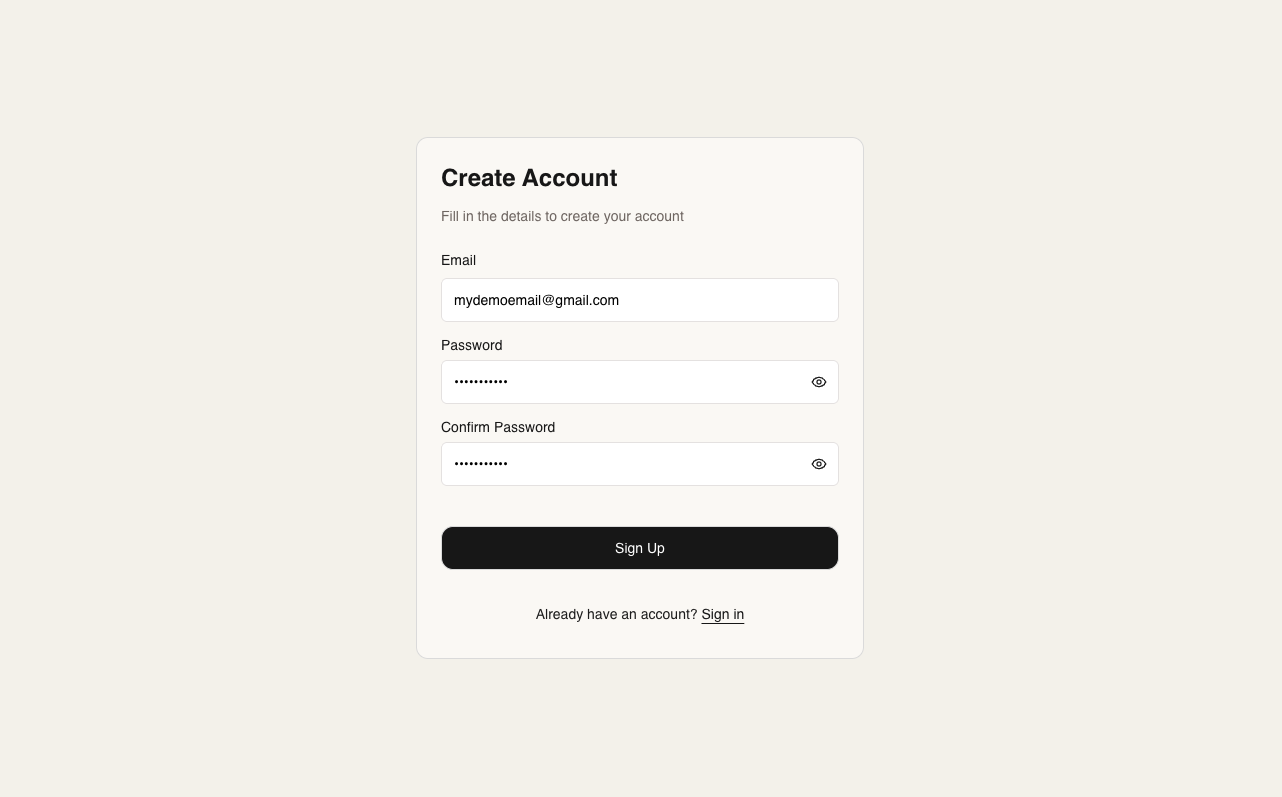
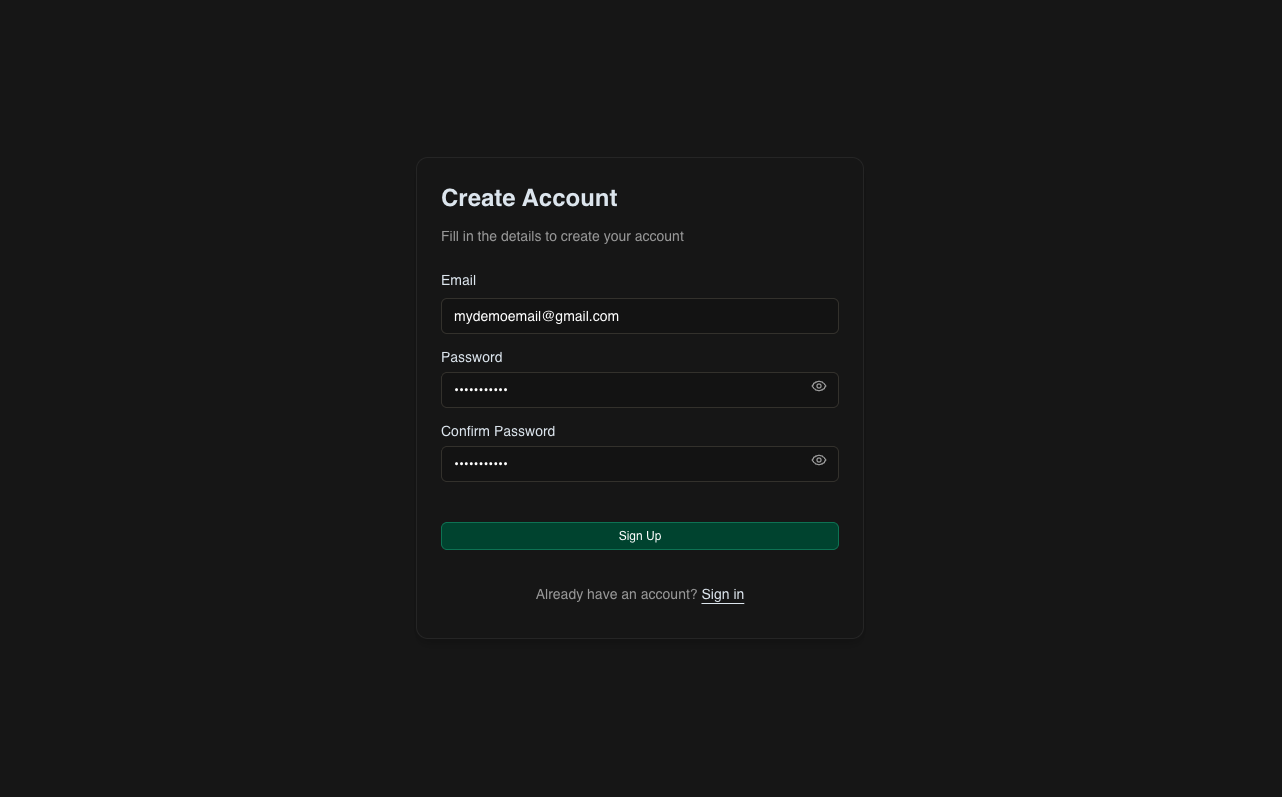
  <Step title="Create Your Account" titleSize="h3">
    <img className="dark:hidden mx-auto" src="https://mintcdn.com/tuhh-d1de0e06/NLF4OVAebw6tUaJP/images/create-account-light.png?fit=max&auto=format&n=NLF4OVAebw6tUaJP&q=85&s=773a823e9d71486581076d8e9adb59ab" alt="Create account" style={{ width:"99%", borderRadius: "12px", margin: "10px" }} width="1282" height="797" data-path="images/create-account-light.png" />

    <img className="hidden dark:block" src="https://mintcdn.com/tuhh-d1de0e06/NLF4OVAebw6tUaJP/images/create-account-dark.png?fit=max&auto=format&n=NLF4OVAebw6tUaJP&q=85&s=5f47fc1552b1749659ee605df7352d41" alt="Create account" style={{ width:"99%", borderRadius: "12px", margin: "10px" }} width="1282" height="797" data-path="images/create-account-dark.png" />
  </Step>

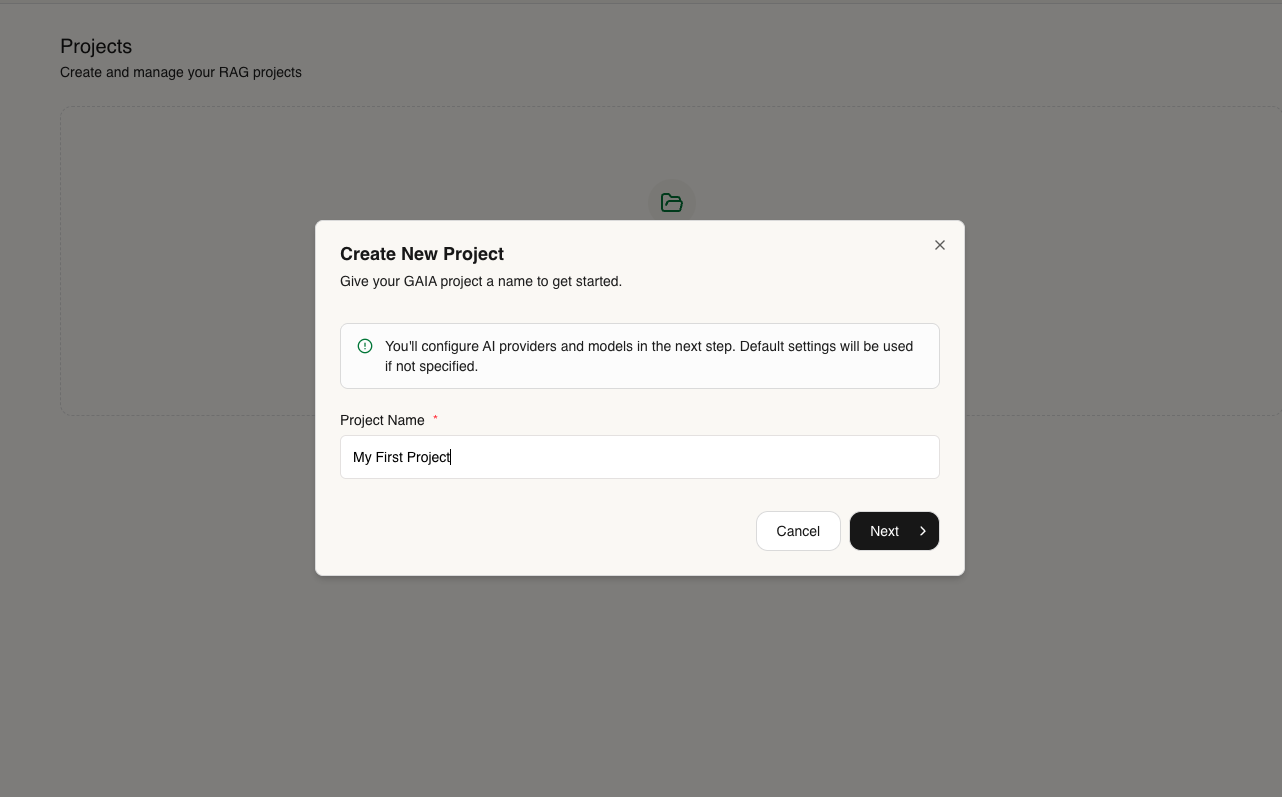
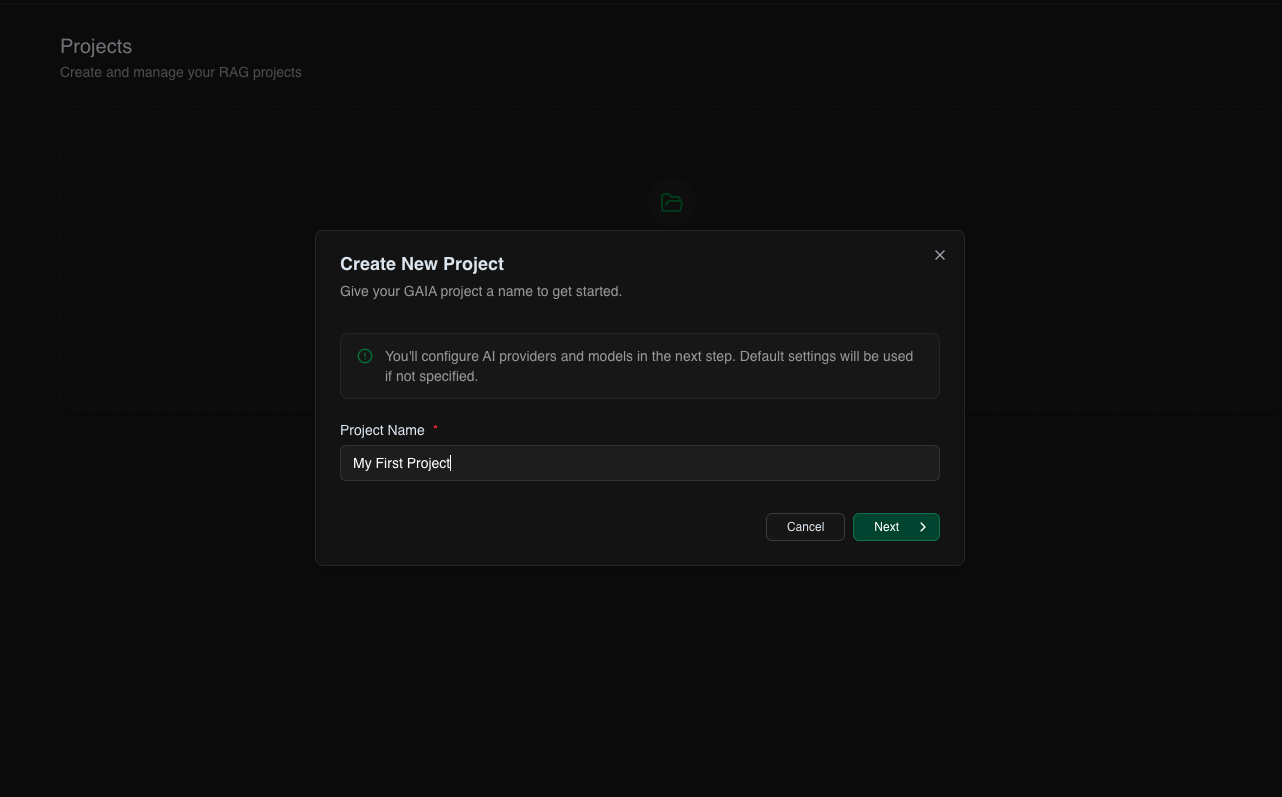
  <Step title="Set Up Your Project Components" titleSize="h3">
    <img className="dark:hidden mx-auto" src="https://mintcdn.com/tuhh-d1de0e06/NLF4OVAebw6tUaJP/images/new-project-light.png?fit=max&auto=format&n=NLF4OVAebw6tUaJP&q=85&s=186373366dce3062c686f375db0c1061" alt="new Project" style={{ width:"99%", borderRadius: "12px", margin: "10px" }} width="1282" height="797" data-path="images/new-project-light.png" />

    <img className="hidden dark:block" src="https://mintcdn.com/tuhh-d1de0e06/NLF4OVAebw6tUaJP/images/new-project-dark.png?fit=max&auto=format&n=NLF4OVAebw6tUaJP&q=85&s=f2860639a4f973867a98561aa5e142e8" alt="new Project" style={{ width:"99%", borderRadius: "12px", margin: "10px" }} width="1282" height="797" data-path="images/new-project-dark.png" />

    You'll need three components:

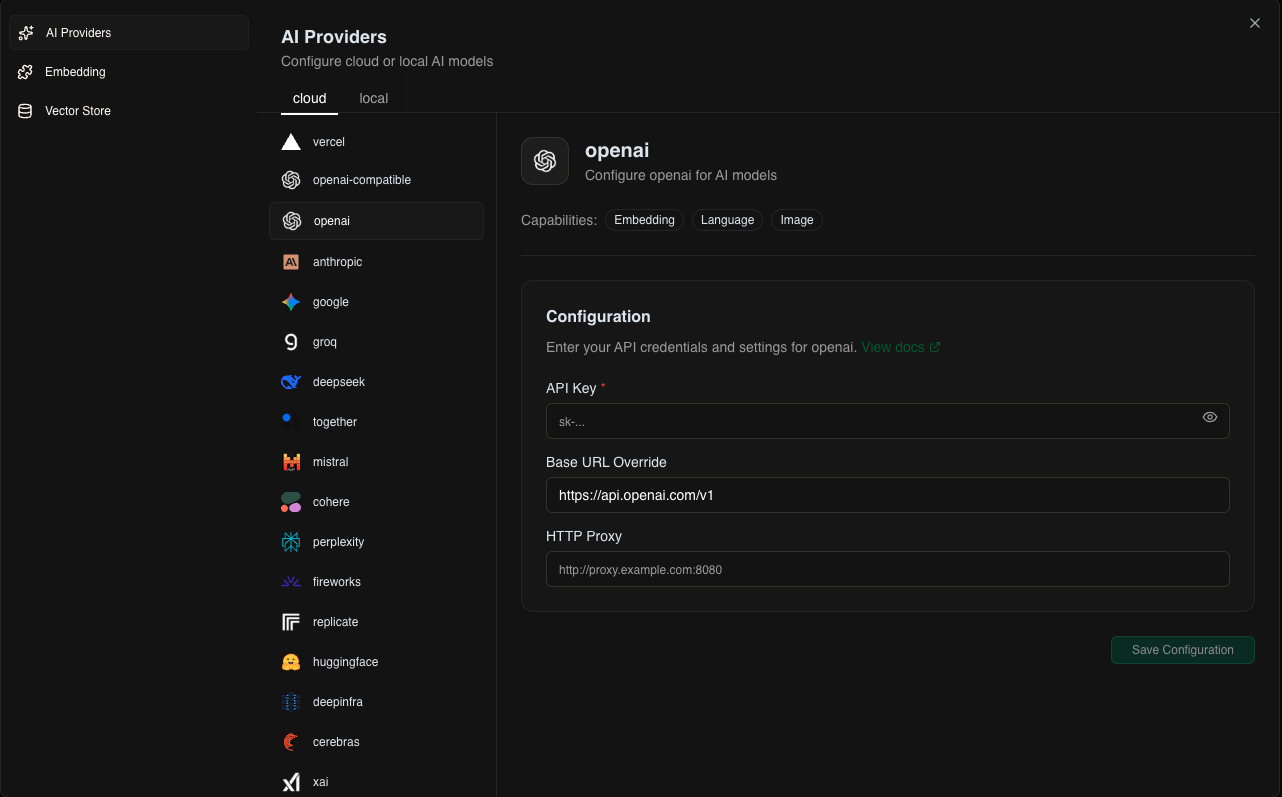
    **1. AI Provider**
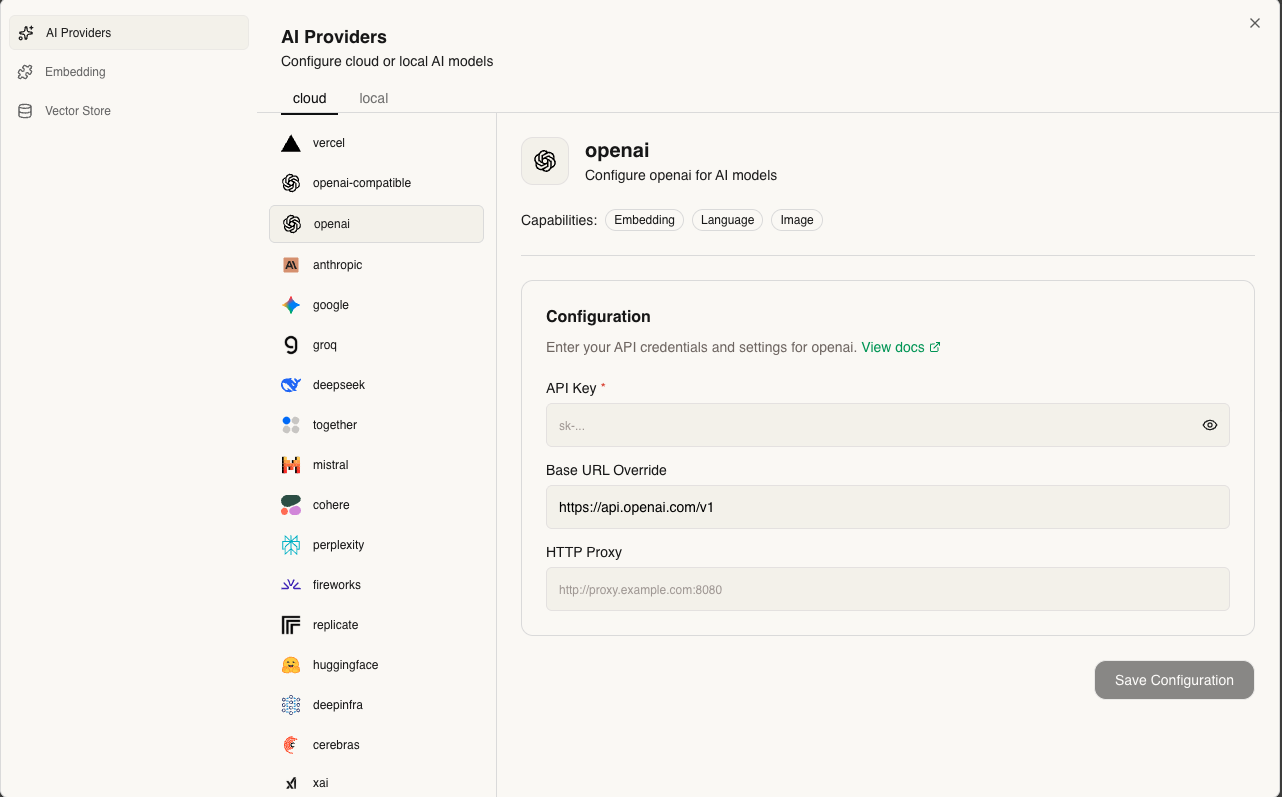
    <img className="dark:hidden mx-auto" src="https://mintcdn.com/tuhh-d1de0e06/NLF4OVAebw6tUaJP/images/aiproviders-light-view.png?fit=max&auto=format&n=NLF4OVAebw6tUaJP&q=85&s=9a39e94624361cb02db15966106dc9f8" alt="AI providers" style={{ width:"99%", borderRadius: "12px", margin: "10px" }} width="1282" height="797" data-path="images/aiproviders-light-view.png" />

    <img className="hidden dark:block" src="https://mintcdn.com/tuhh-d1de0e06/NLF4OVAebw6tUaJP/images/aiproviders-dark-view.png?fit=max&auto=format&n=NLF4OVAebw6tUaJP&q=85&s=3b6c7797dcfa82db4a359e847006ac44" alt="AI providers" style={{ width:"99%", borderRadius: "12px", margin: "10px" }} width="1282" height="797" data-path="images/aiproviders-dark-view.png" />

    Choose between:

    * **Local:** Ollama or openai compatible models
    * **Cloud:** OpenAI, Anthropic, Google, etc.

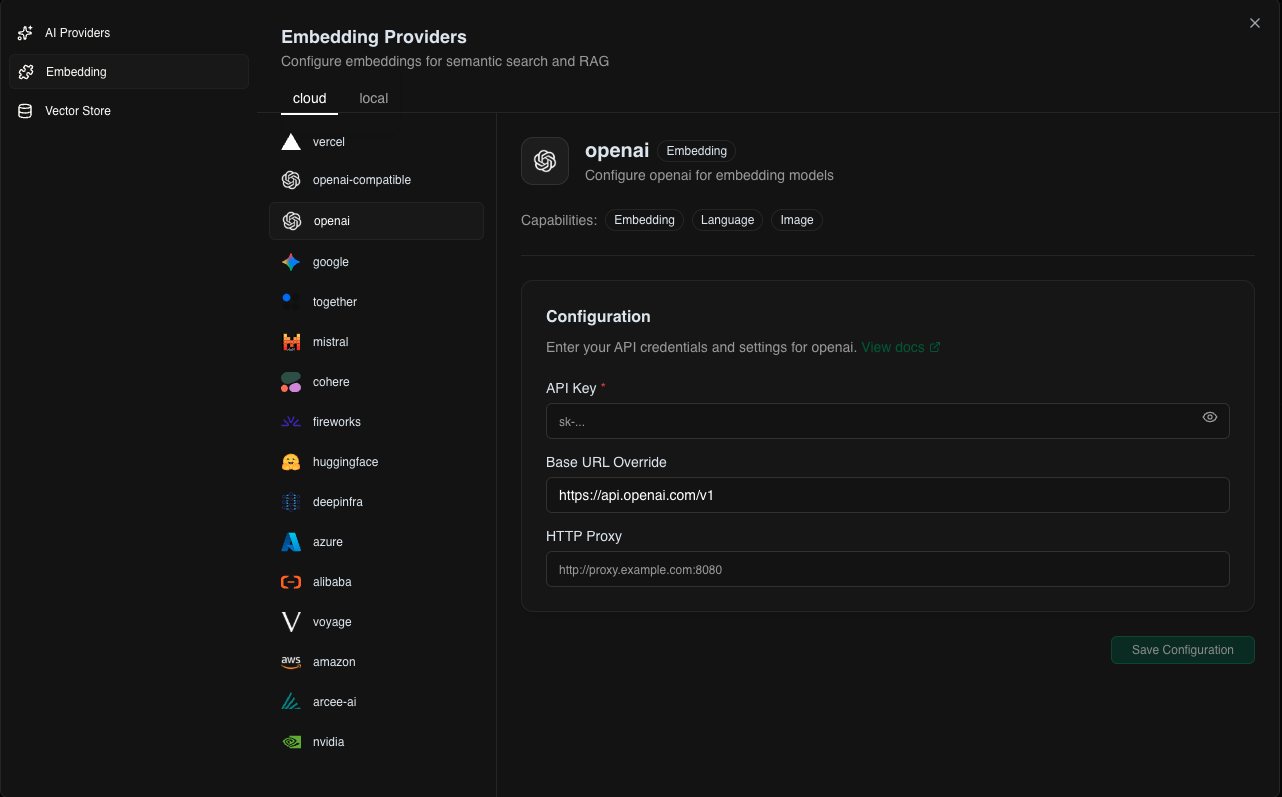
    **2. Embedding Provider**
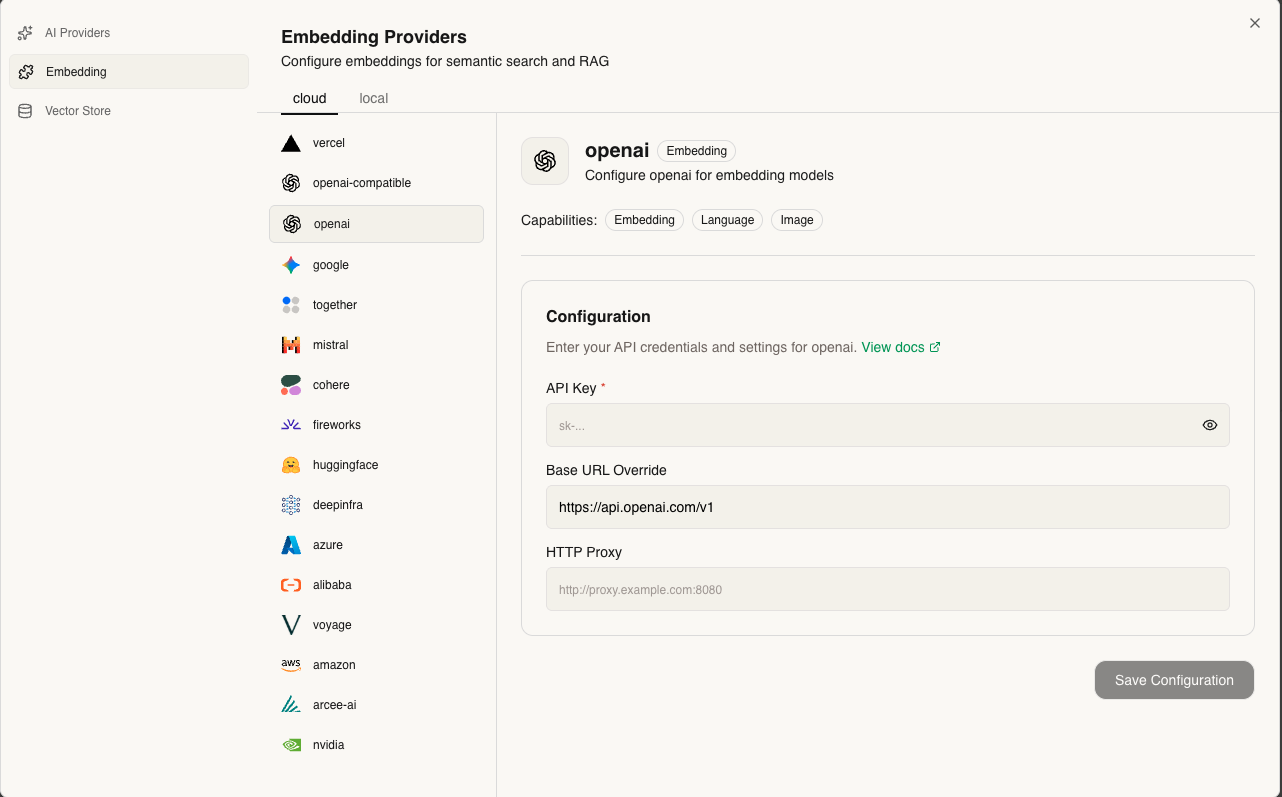
    <img className="dark:hidden mx-auto" src="https://mintcdn.com/tuhh-d1de0e06/NLF4OVAebw6tUaJP/images/embedding-view-light.png?fit=max&auto=format&n=NLF4OVAebw6tUaJP&q=85&s=2f162a4aa9e80c3733e12b3a8fa7b876" alt="Embedding providers" style={{ width:"99%", borderRadius: "12px", margin: "10px" }} width="1282" height="797" data-path="images/embedding-view-light.png" />

    <img className="hidden dark:block" src="https://mintcdn.com/tuhh-d1de0e06/NLF4OVAebw6tUaJP/images/embedding-view-dark.png?fit=max&auto=format&n=NLF4OVAebw6tUaJP&q=85&s=7bde9b2e93a5e8d131c03135942f3157" alt="Embedding providers" style={{ width:"99%", borderRadius: "12px", margin: "10px" }} width="1282" height="797" data-path="images/embedding-view-dark.png" />

    Choose between:

    * **Local:** Ollama embeddings
    * **Cloud:** OpenAI, Cohere, etc.

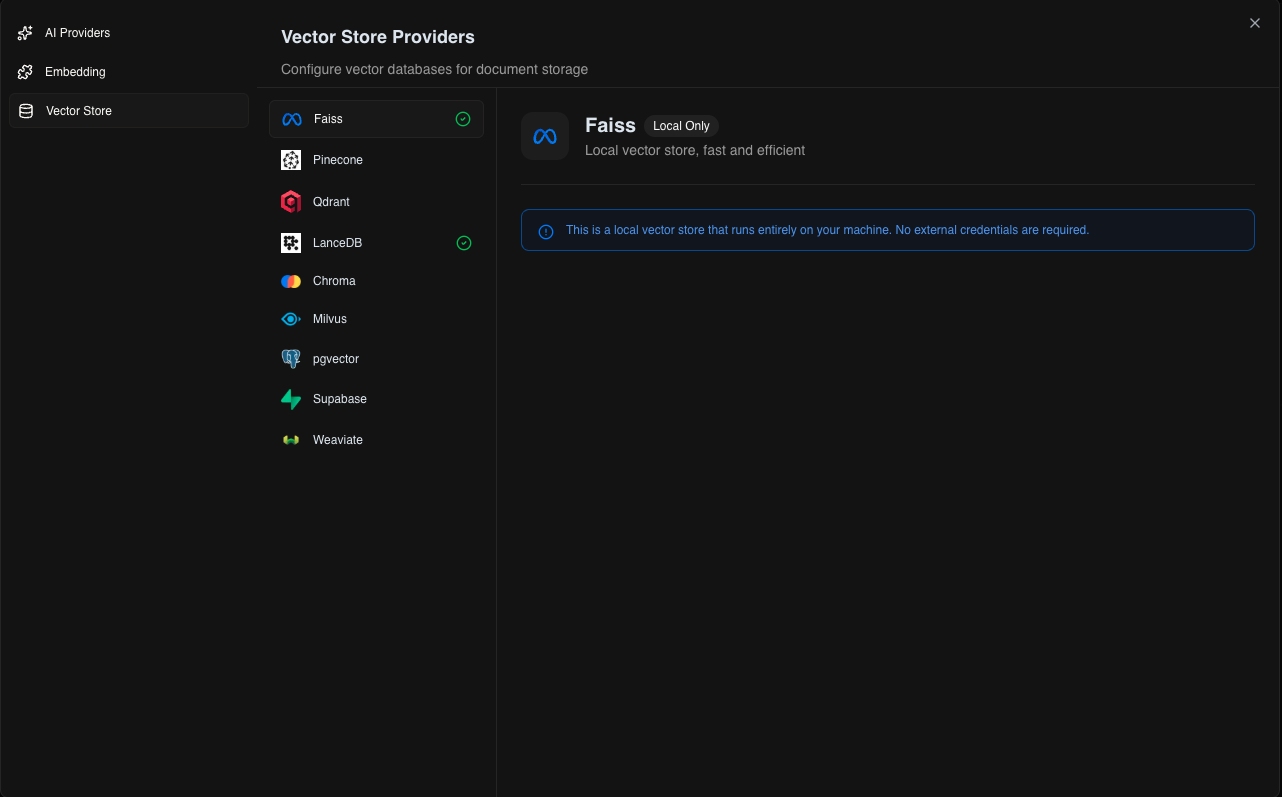
    **3. Vector Store**
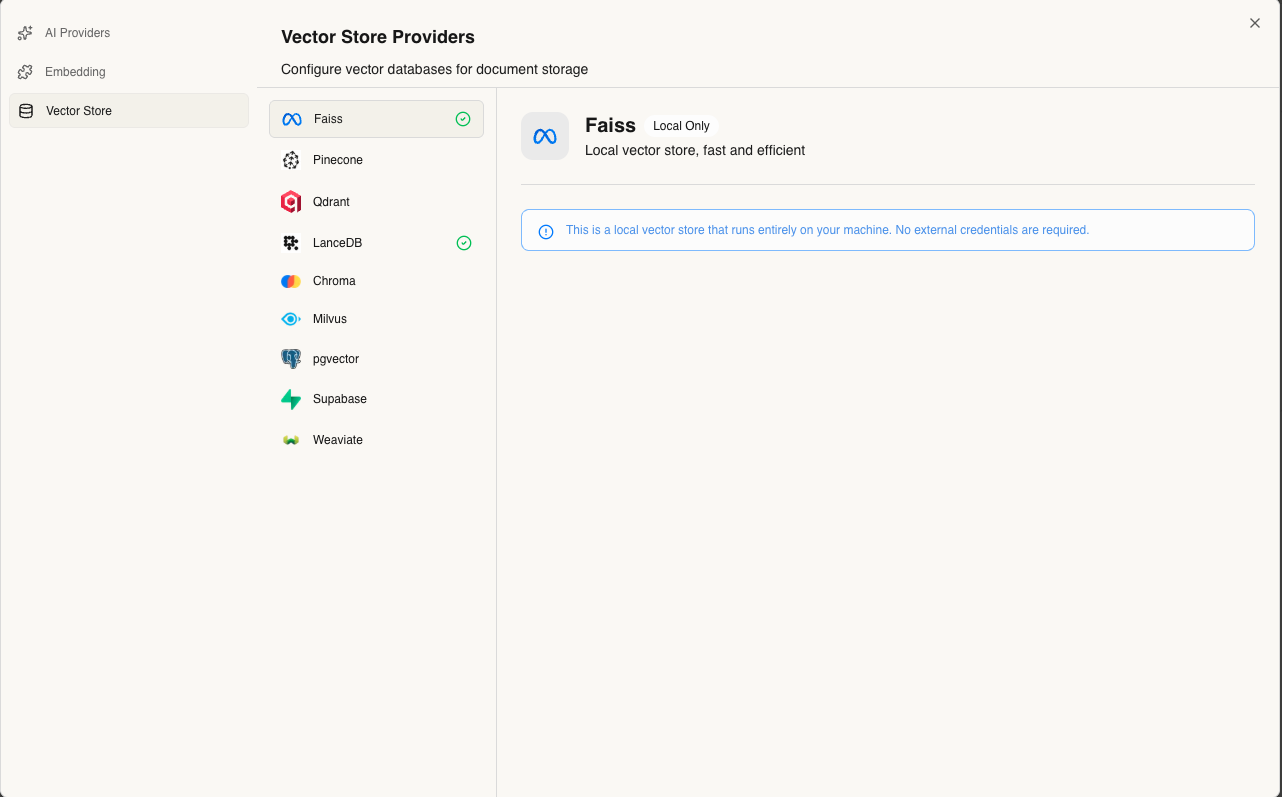
    <img className="dark:hidden mx-auto" src="https://mintcdn.com/tuhh-d1de0e06/NLF4OVAebw6tUaJP/images/vectorstore-view-light.png?fit=max&auto=format&n=NLF4OVAebw6tUaJP&q=85&s=dd761add4e705e4a71b02d7c451d493b" alt="Vector stores" style={{ width:"99%", borderRadius: "12px", margin: "10px" }} width="1282" height="797" data-path="images/vectorstore-view-light.png" />

    <img className="hidden dark:block" src="https://mintcdn.com/tuhh-d1de0e06/NLF4OVAebw6tUaJP/images/vectorstore-view-dark.png?fit=max&auto=format&n=NLF4OVAebw6tUaJP&q=85&s=983e2177db80cbd321df1b4bbb9ab902" alt="Vector stores" style={{ width:"99%", borderRadius: "12px", margin: "10px" }} width="1282" height="797" data-path="images/vectorstore-view-dark.png" />

    Choose between:

    * **Local:** Faiss, LanceDB
    * **Cloud:** Pinecone, Weaviate, etc.
  </Step>

  <Step title="Build Your Agent" titleSize="h3">
    Customize your agent with:

    **1. Add Knowledge** ([Learn more](/features/knowledge-rag))
    Upload and index documents for your agent to reference.

    **2. Create Tools** ([Learn more](/features/tools))
    Design custom functions your agent can execute.

    **3. Connect MCPs** ([Learn more](/features/mcp))
    Integrate and connect with external [MCPs](https://modelcontextprotocol.io/docs/getting-started/intro) and protocols.
  </Step>

  <Step title="Start Using Your Agent" titleSize="h3">
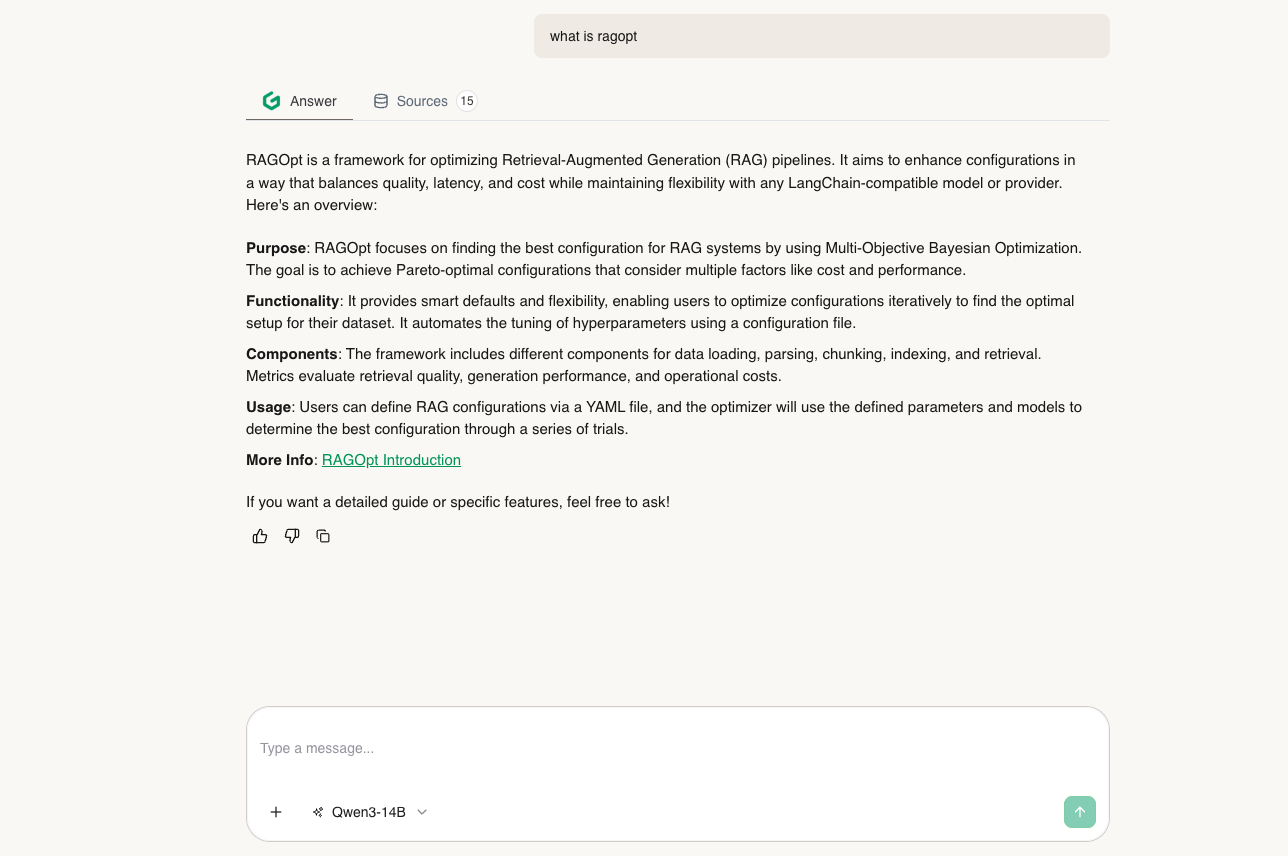
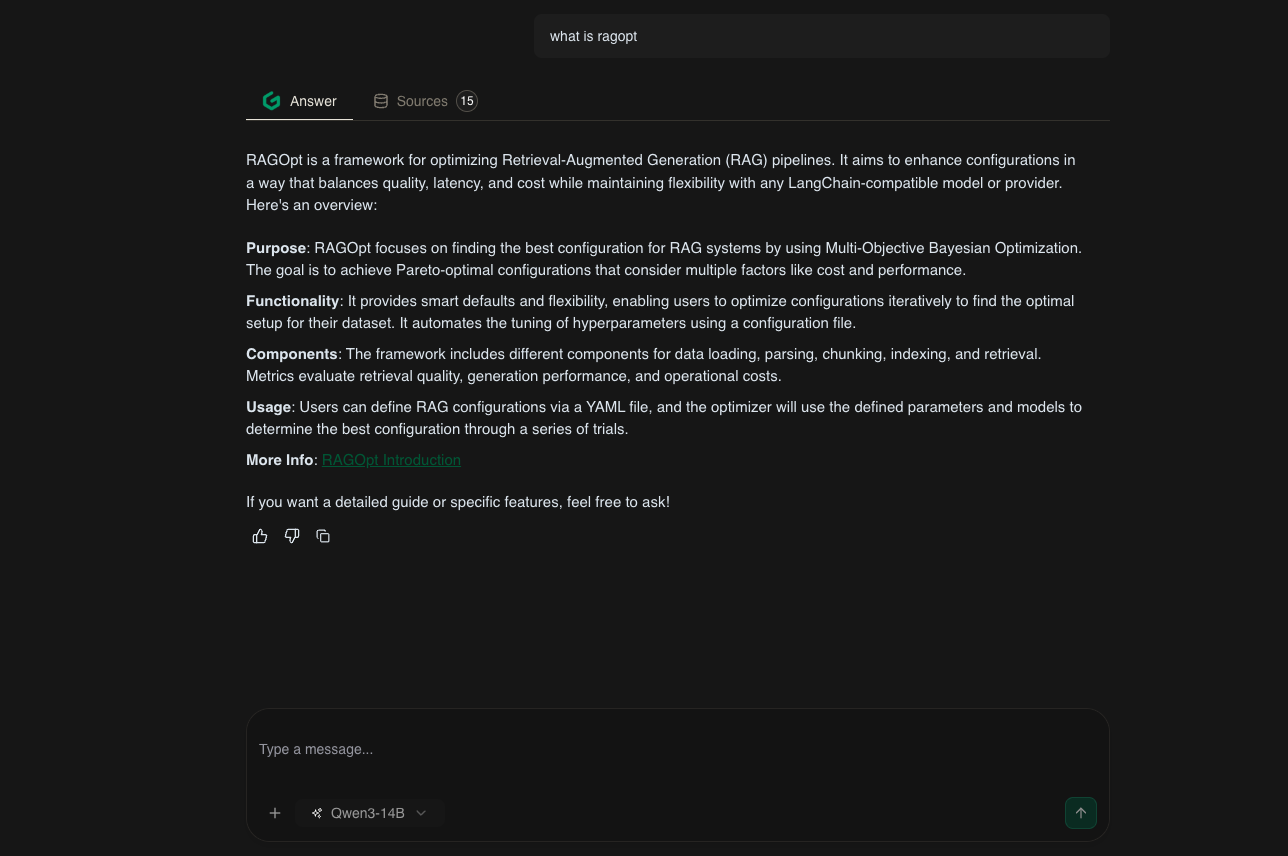
    **Chat Interface:**

    <img className="dark:hidden mx-auto" src="https://mintcdn.com/tuhh-d1de0e06/NLF4OVAebw6tUaJP/images/chat-light.png?fit=max&auto=format&n=NLF4OVAebw6tUaJP&q=85&s=d982bd871b8c523266835546853ee852" alt="Chat interface" style={{ width:"99%", borderRadius: "12px", margin: "10px" }} width="1288" height="856" data-path="images/chat-light.png" />

    <img className="hidden dark:block" src="https://mintcdn.com/tuhh-d1de0e06/NLF4OVAebw6tUaJP/images/chat-dark.png?fit=max&auto=format&n=NLF4OVAebw6tUaJP&q=85&s=a5542b8c8c411fbd151c4dbefd642683" alt="Chat interface" style={{ width:"99%", borderRadius: "12px", margin: "10px" }} width="1288" height="856" data-path="images/chat-dark.png" />

    **Or integrate via SDK:** ([View integrations](/integration/overview))

    * OpenAI SDK
    * Vercel AI SDK
    * REST API
  </Step>
</Steps>

***

**Next Steps:** Check out the [Features](/features) to explore everything GAIA AI can do!