> ## Documentation Index
> Fetch the complete documentation index at: https://gaia-docs.com/llms.txt
> Use this file to discover all available pages before exploring further.
# Tools
> Extend your agents with custom capabilities and integrations
Give your agents the ability to take actions—from calling external APIs and querying databases to running custom business logic. Tools transform your agents from conversational assistants into powerful automation platforms.
***
## What Are Tools?
Tools are functions that your AI agent can call to perform specific tasks. They enable your agent to:
* **Integrate with external services** - Connect to APIs, databases, CRMs, and third-party platforms
* **Perform computations** - Run calculations, data analysis, or custom algorithms
* **Take actions** - Send emails, create tickets, update records, or trigger workflows
* **Access real-time data** - Fetch live information from the web, databases, or internal systems
The AI automatically decides when and how to use tools based on the conversation context, making your agents truly capable of getting work done.
**Learn More:** For detailed information on tool design patterns and best practices, check out the [OpenAI Tool Use Guide](https://platform.openai.com/docs/guides/tools).
***
With tools, you can create sophisticated applications and give your agents access to virtually any capability:
* **Data Analysis Dashboards** - Query databases, process data, generate visualizations
* **Customer Support Automation** - Integrate with ticketing systems, CRMs, knowledge bases
* **DevOps Assistants** - Deploy code, monitor systems, manage infrastructure
* **E-commerce Agents** - Process orders, check inventory, handle refunds
* **Research Assistants** - Search academic databases, summarize papers, track citations
* **Financial Tools** - Fetch stock prices, calculate metrics, generate reports
The only limit is your imagination and the APIs you connect to.
***
## Setup Your Tools
**Note** In the current version of GAIA, custom tools are defined in TypeScript. The next version of GAIA will include a local sandbox environment where you can define tools in multiple programming languages including Python, Go, and more. This will enable use cases like building data analysis tools with pandas, scientific computing with NumPy, or specialized libraries in other languages.
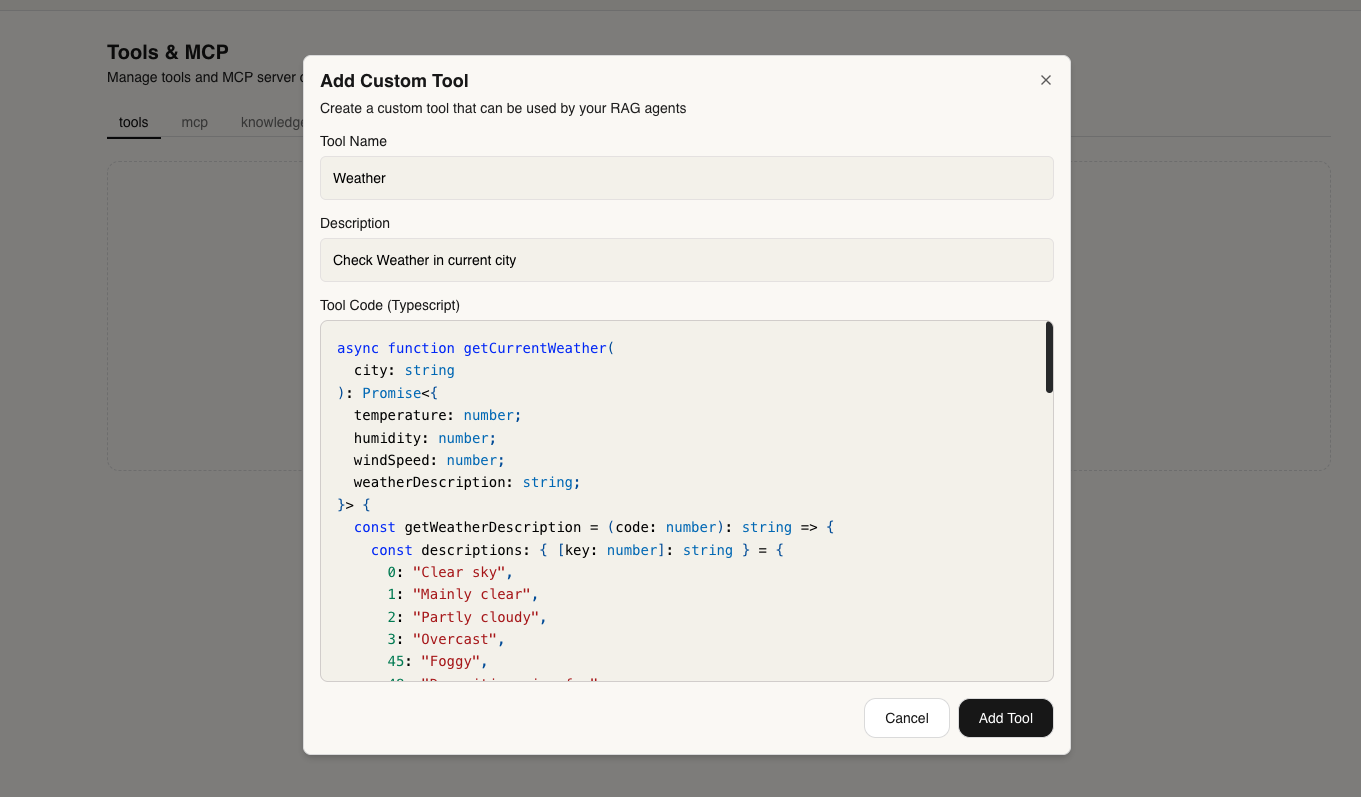
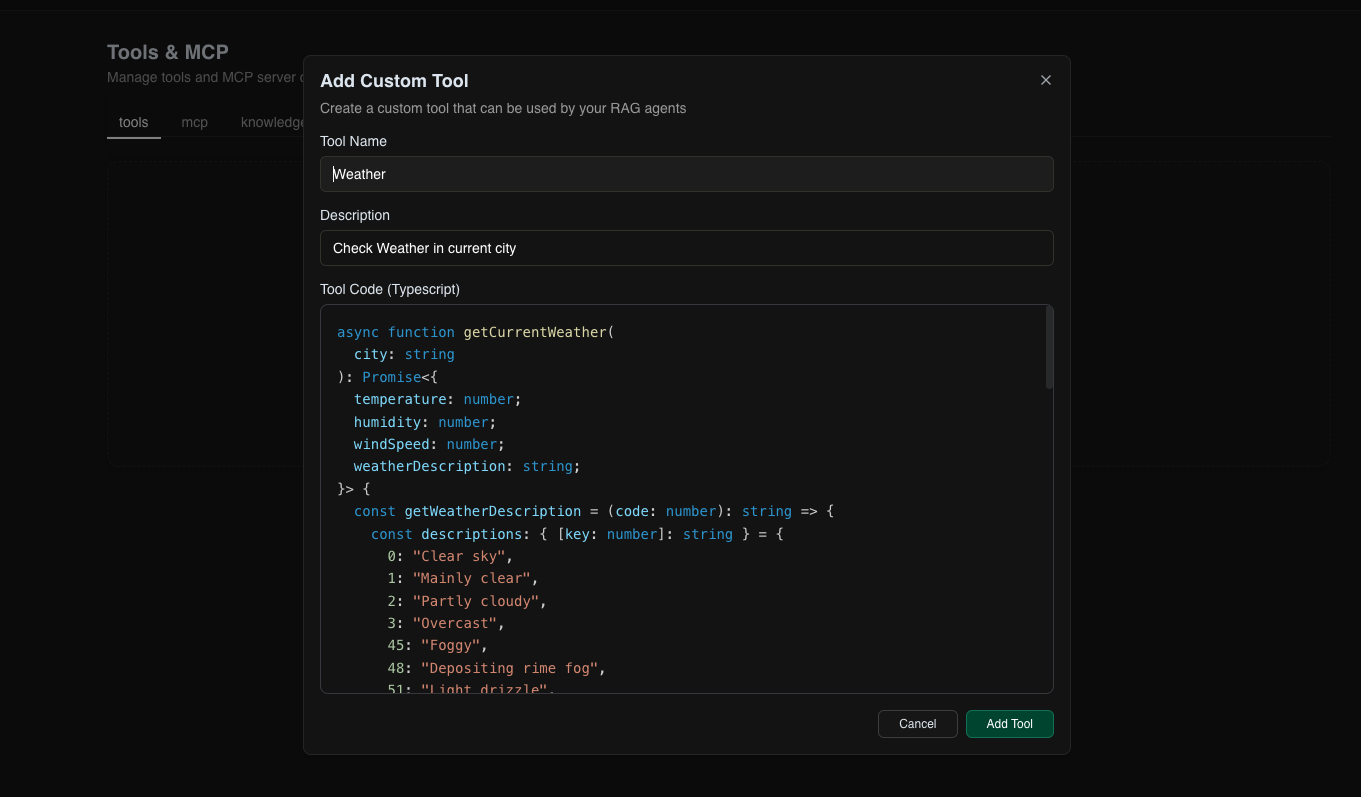
Go to your project and click the **Tools** tab to view and manage your tools.
 **Option 1: Use Built-in Tools**
GAIA includes ready-to-use tools for common tasks:
* Web search and scraping
* Mathematical calculations
* File operations (read/write)
* Email sending
* Date and time utilities
Simply toggle them on to make them available to your agent.
**Option 2: Create Custom Tools**
Write your own tools in TypeScript to connect to any service or implement custom logic.
Once enabled, test your tools directly in the chat interface:
**Option 1: Use Built-in Tools**
GAIA includes ready-to-use tools for common tasks:
* Web search and scraping
* Mathematical calculations
* File operations (read/write)
* Email sending
* Date and time utilities
Simply toggle them on to make them available to your agent.
**Option 2: Create Custom Tools**
Write your own tools in TypeScript to connect to any service or implement custom logic.
Once enabled, test your tools directly in the chat interface:
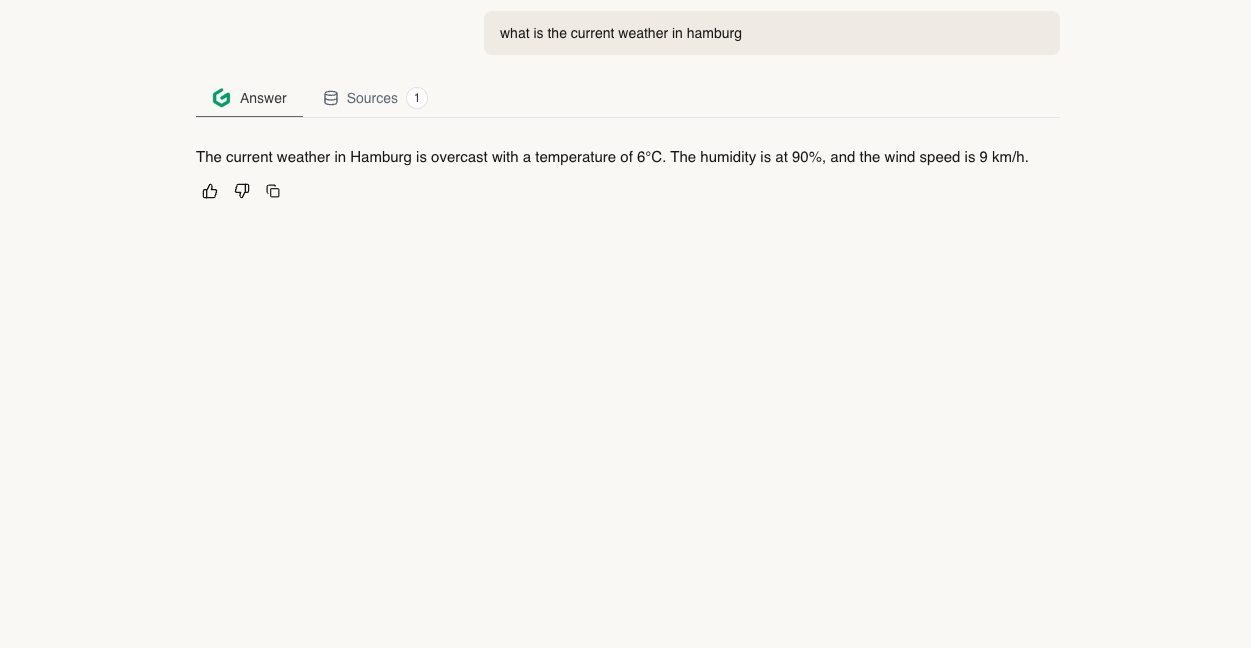
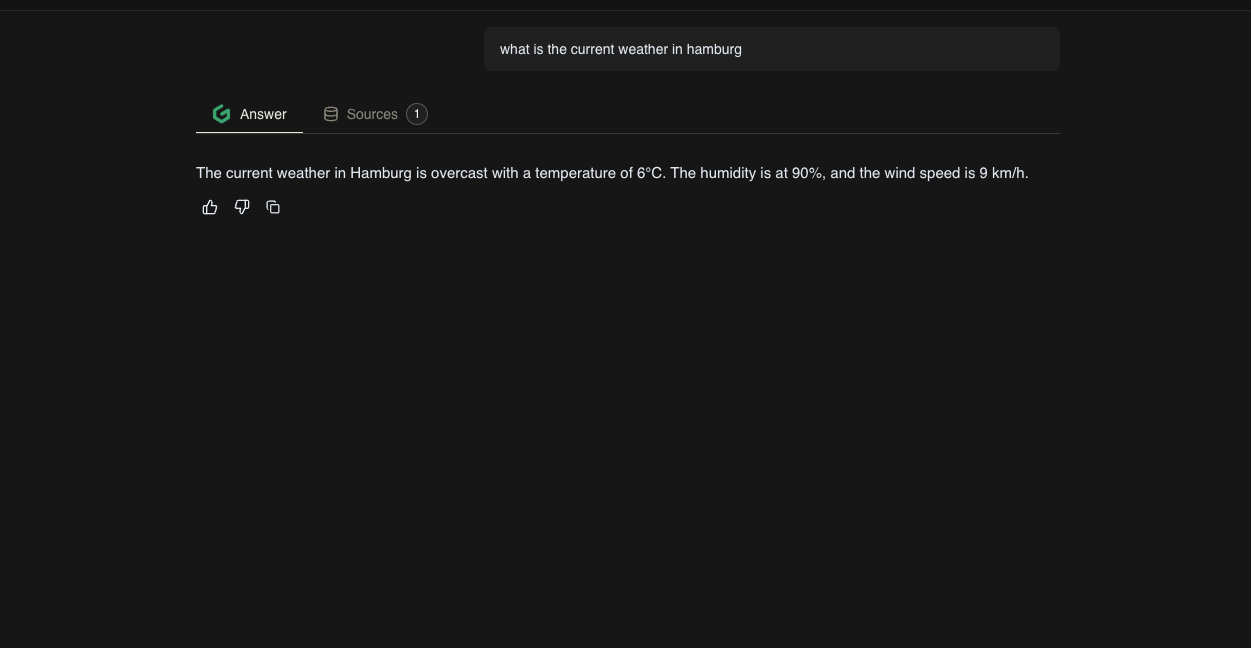 Your agent will automatically use tools when needed based on the conversation.
Check the **Sources** tab to see exactly how your agent called each tool, including parameters and responses:
Your agent will automatically use tools when needed based on the conversation.
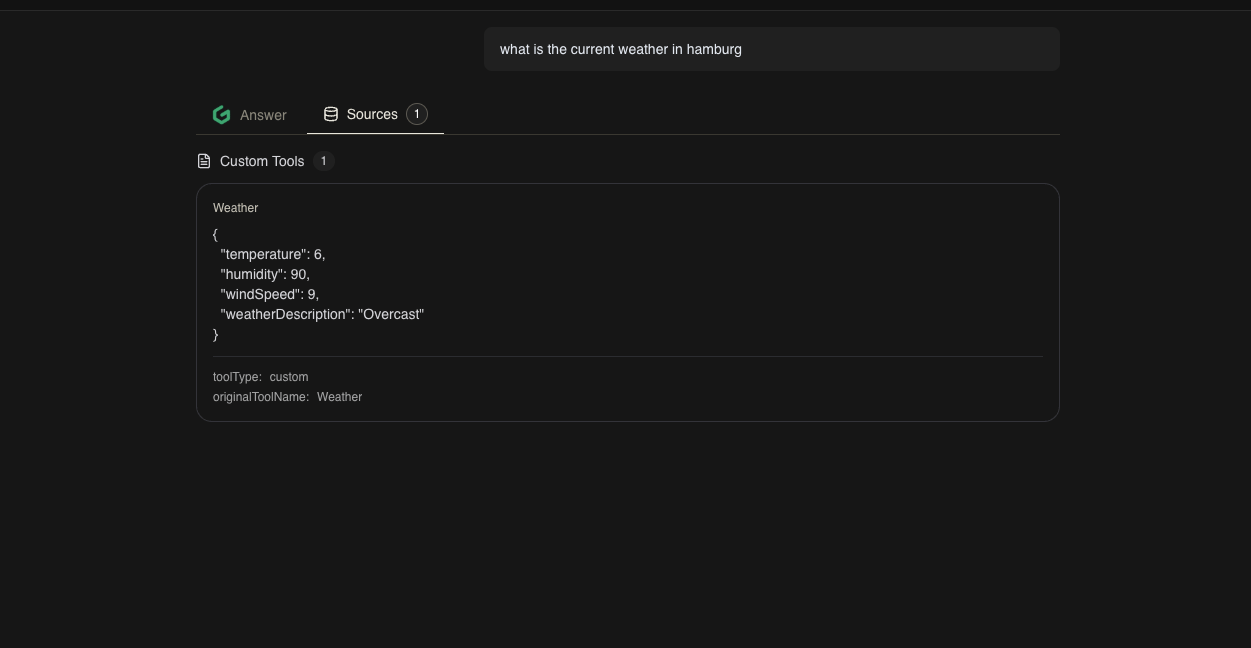
Check the **Sources** tab to see exactly how your agent called each tool, including parameters and responses:
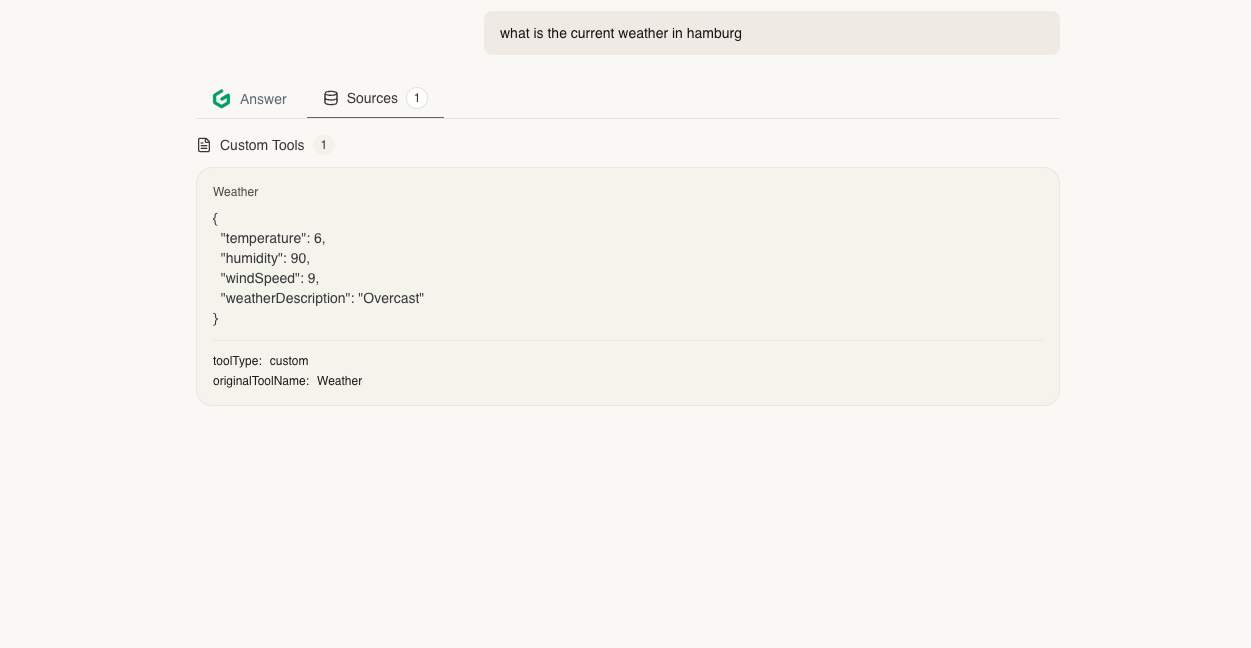
 This transparency helps you debug and understand your agent's decision-making process.
***
## Creating Custom Tools
Let's Create a demo Tool that will allow your AI Agent to be able to know the current Weather of specific city
```typescript theme={null}
async function getCurrentWeather(
city: string
): Promise<{
temperature: number;
humidity: number;
windSpeed: number;
weatherDescription: string;
}> {
const getWeatherDescription = (code: number): string => {
const descriptions: { [key: number]: string } = {
0: "Clear sky",
1: "Mainly clear",
2: "Partly cloudy",
3: "Overcast",
45: "Foggy",
48: "Depositing rime fog",
51: "Light drizzle",
53: "Moderate drizzle",
55: "Dense drizzle",
56: "Light freezing drizzle",
57: "Dense freezing drizzle",
61: "Slight rain",
63: "Moderate rain",
65: "Heavy rain",
66: "Light freezing rain",
67: "Heavy freezing rain",
71: "Slight snow",
73: "Moderate snow",
75: "Heavy snow",
77: "Snow grains",
80: "Slight rain showers",
81: "Moderate rain showers",
82: "Violent rain showers",
85: "Slight snow showers",
86: "Heavy snow showers",
95: "Thunderstorm",
96: "Thunderstorm with slight hail",
99: "Thunderstorm with heavy hail"
};
return descriptions[code] || "Unknown";
};
try {
const geocodeUrl = `https://geocoding-api.open-meteo.com/v1/search?name=${encodeURIComponent(
city
)}&count=1`;
const geoRes = await fetch(geocodeUrl);
if (!geoRes.ok) throw new Error("Failed to fetch geocoding data");
const geoData = await geoRes.json();
if (!geoData.results || geoData.results.length === 0) {
throw new Error("City not found");
}
const { latitude, longitude } = geoData.results[0];
const weatherUrl = `https://api.open-meteo.com/v1/forecast?latitude=${latitude}&longitude=${longitude}¤t=temperature_2m,relative_humidity_2m,wind_speed_10m,weather_code`;
const weatherRes = await fetch(weatherUrl);
if (!weatherRes.ok) throw new Error("Failed to fetch weather data");
const weatherData = await weatherRes.json();
const current = weatherData.current;
return {
temperature: current.temperature_2m,
humidity: current.relative_humidity_2m,
windSpeed: current.wind_speed_10m,
weatherDescription: getWeatherDescription(current.weather_code)
};
} catch (error: any) {
throw new Error(error.message || "Unexpected error occurred");
}
}
```
***
## Using Tools
### Via UI
Navigate to your project's **Tools** tab and enable the tools you want to use.
Start a conversation. Your agent will automatically use tools when appropriate.
Check the **Sources** tab in the chat to see which tools were called and their results.
### Via API
You can programmatically create and manage tools:
You can check api reference here [Tools API Reference](/api-reference/tools/create)
The AI automatically determines when to use tools based on the conversation context and tool descriptions.
This transparency helps you debug and understand your agent's decision-making process.
***
## Creating Custom Tools
Let's Create a demo Tool that will allow your AI Agent to be able to know the current Weather of specific city
```typescript theme={null}
async function getCurrentWeather(
city: string
): Promise<{
temperature: number;
humidity: number;
windSpeed: number;
weatherDescription: string;
}> {
const getWeatherDescription = (code: number): string => {
const descriptions: { [key: number]: string } = {
0: "Clear sky",
1: "Mainly clear",
2: "Partly cloudy",
3: "Overcast",
45: "Foggy",
48: "Depositing rime fog",
51: "Light drizzle",
53: "Moderate drizzle",
55: "Dense drizzle",
56: "Light freezing drizzle",
57: "Dense freezing drizzle",
61: "Slight rain",
63: "Moderate rain",
65: "Heavy rain",
66: "Light freezing rain",
67: "Heavy freezing rain",
71: "Slight snow",
73: "Moderate snow",
75: "Heavy snow",
77: "Snow grains",
80: "Slight rain showers",
81: "Moderate rain showers",
82: "Violent rain showers",
85: "Slight snow showers",
86: "Heavy snow showers",
95: "Thunderstorm",
96: "Thunderstorm with slight hail",
99: "Thunderstorm with heavy hail"
};
return descriptions[code] || "Unknown";
};
try {
const geocodeUrl = `https://geocoding-api.open-meteo.com/v1/search?name=${encodeURIComponent(
city
)}&count=1`;
const geoRes = await fetch(geocodeUrl);
if (!geoRes.ok) throw new Error("Failed to fetch geocoding data");
const geoData = await geoRes.json();
if (!geoData.results || geoData.results.length === 0) {
throw new Error("City not found");
}
const { latitude, longitude } = geoData.results[0];
const weatherUrl = `https://api.open-meteo.com/v1/forecast?latitude=${latitude}&longitude=${longitude}¤t=temperature_2m,relative_humidity_2m,wind_speed_10m,weather_code`;
const weatherRes = await fetch(weatherUrl);
if (!weatherRes.ok) throw new Error("Failed to fetch weather data");
const weatherData = await weatherRes.json();
const current = weatherData.current;
return {
temperature: current.temperature_2m,
humidity: current.relative_humidity_2m,
windSpeed: current.wind_speed_10m,
weatherDescription: getWeatherDescription(current.weather_code)
};
} catch (error: any) {
throw new Error(error.message || "Unexpected error occurred");
}
}
```
***
## Using Tools
### Via UI
Navigate to your project's **Tools** tab and enable the tools you want to use.
Start a conversation. Your agent will automatically use tools when appropriate.
Check the **Sources** tab in the chat to see which tools were called and their results.
### Via API
You can programmatically create and manage tools:
You can check api reference here [Tools API Reference](/api-reference/tools/create)
The AI automatically determines when to use tools based on the conversation context and tool descriptions.