> ## Documentation Index
> Fetch the complete documentation index at: https://gaia-docs.com/llms.txt
> Use this file to discover all available pages before exploring further.
# MCP Connection
> Extend your agents with Model Context Protocol servers
Connect your agents to external systems and services through the Model Context Protocol. MCP enables seamless integration with databases, APIs, file systems, and third-party platforms, giving your agents access to real-world data and capabilities.
***
## What is MCP?
The [Model Context Protocol](https://modelcontextprotocol.io) is a standardized way for AI agents to interact with external systems. MCP servers act as bridges between your agent and various services, enabling your AI to:
* **Access external data sources** - Connect to databases, file systems, cloud storage, and APIs
* **Integrate with platforms** - Work with GitHub, Slack, Google Drive, Notion, and more
* **Execute system operations** - Run commands, query databases, manipulate files
* **Maintain context** - Keep consistent access to resources across conversations
Think of MCP as a universal adapter that lets your agent plug into virtually any service or data source through a standardized interface.
***
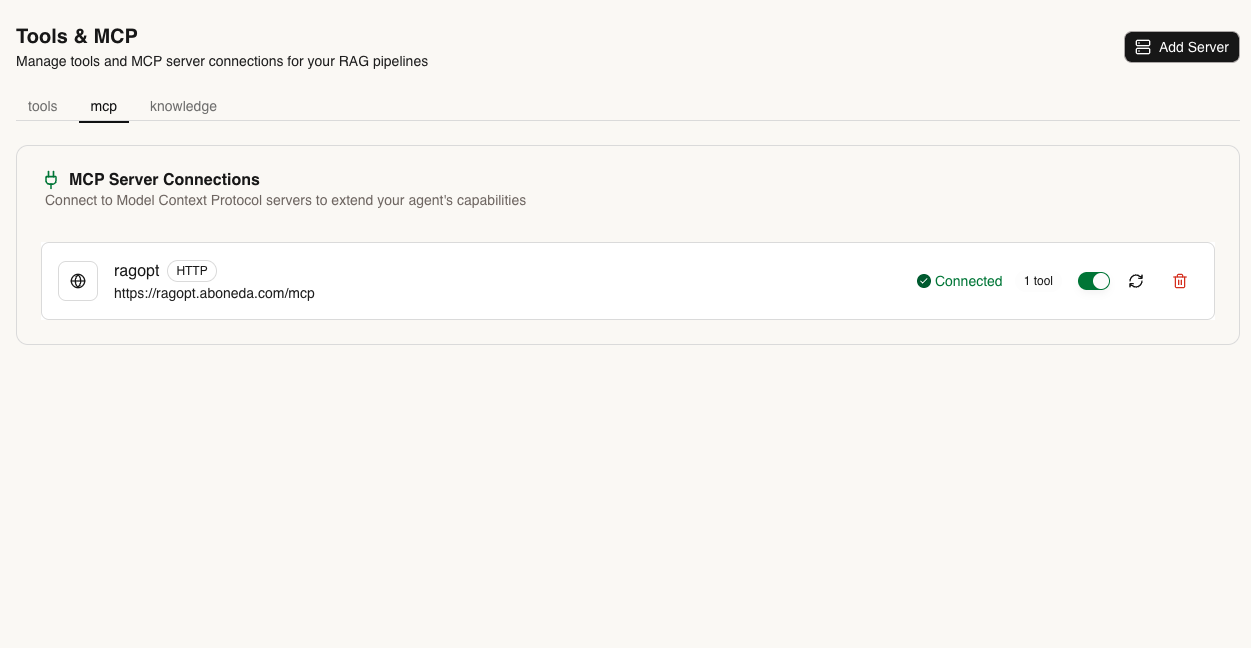
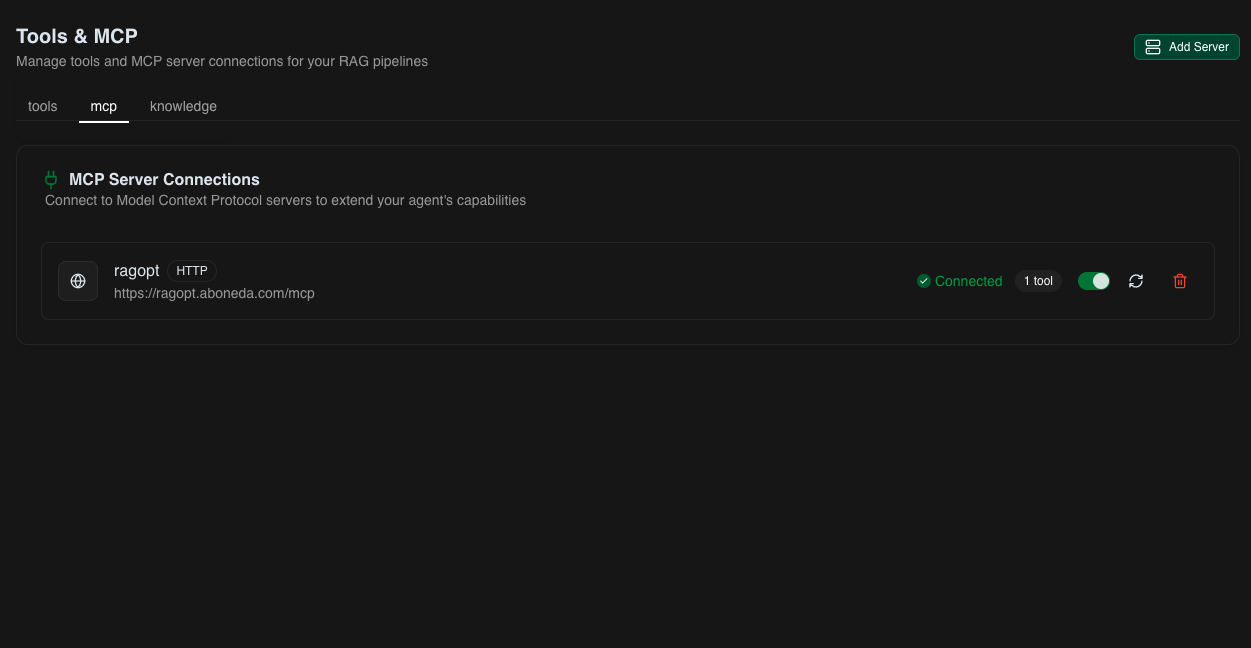
## Setup MCP Tab View
Go to **Tools & MCP Page** to view and manage your connected servers.
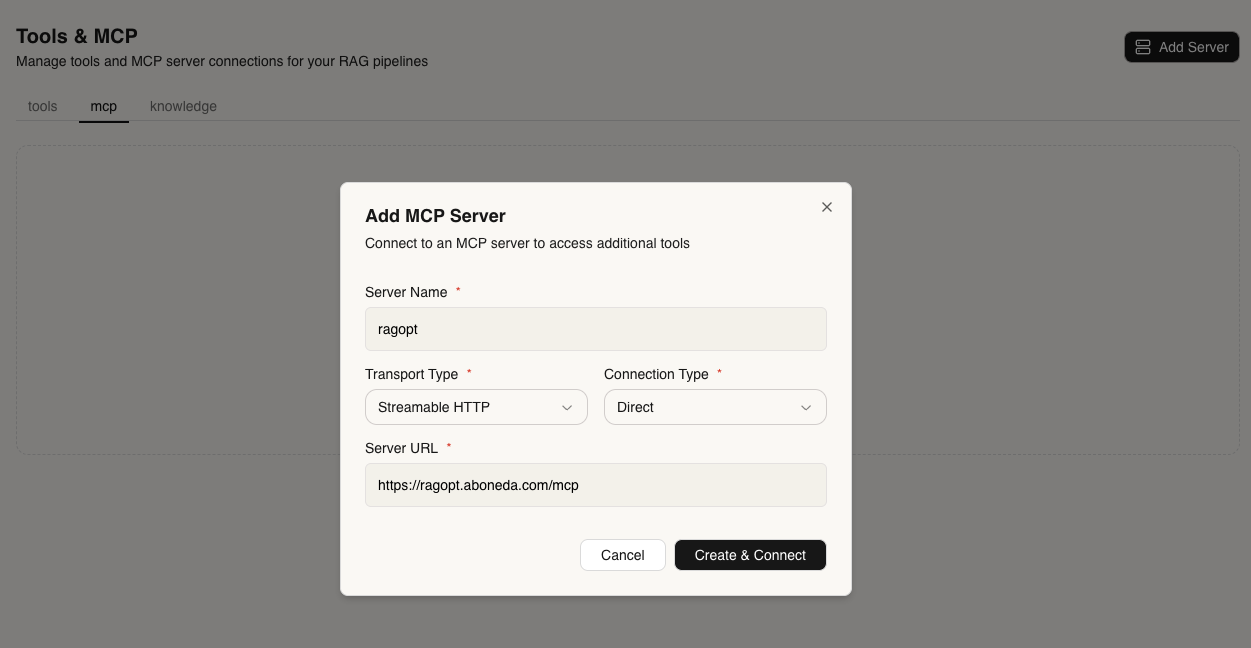
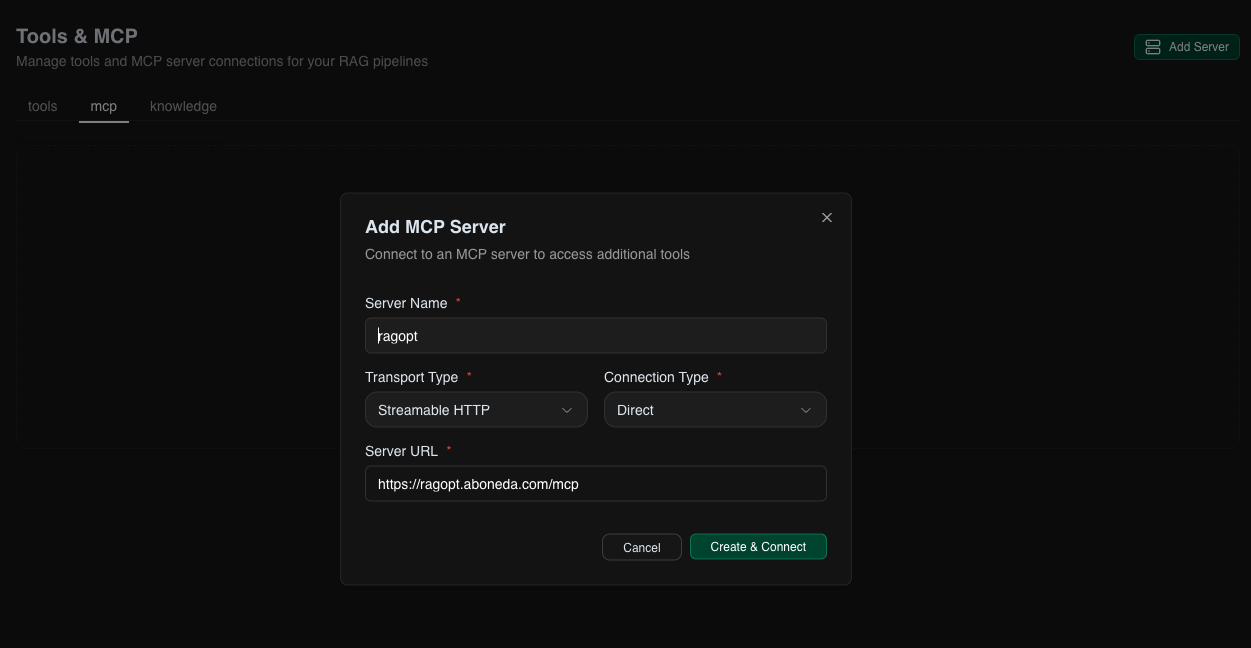
 Click **Add Server** and configure your MCP connection:
 Once added, enable the MCP server for specific projects where you want your agent to have access to its capabilities.
Start a conversation with your agent and ask it to use the connected service:
Once added, enable the MCP server for specific projects where you want your agent to have access to its capabilities.
Start a conversation with your agent and ask it to use the connected service:
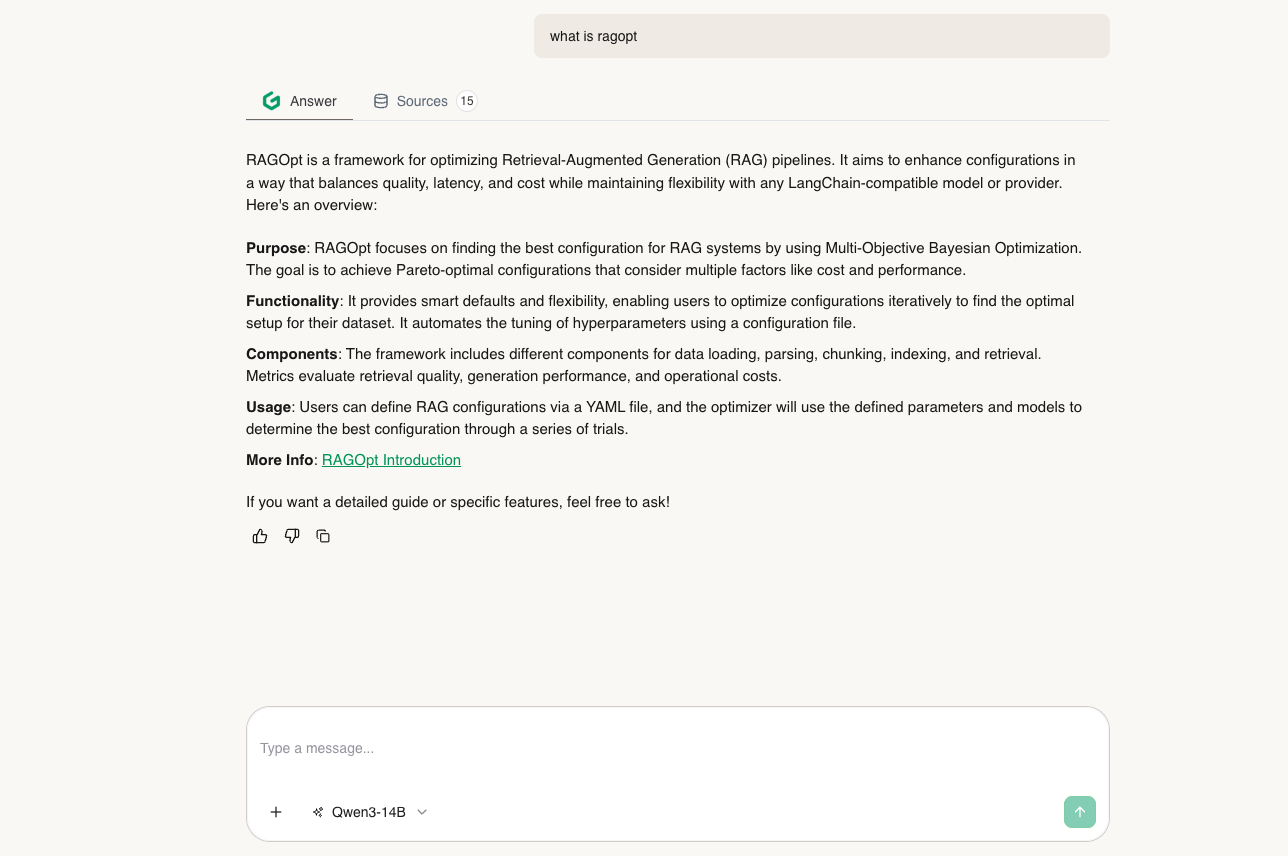
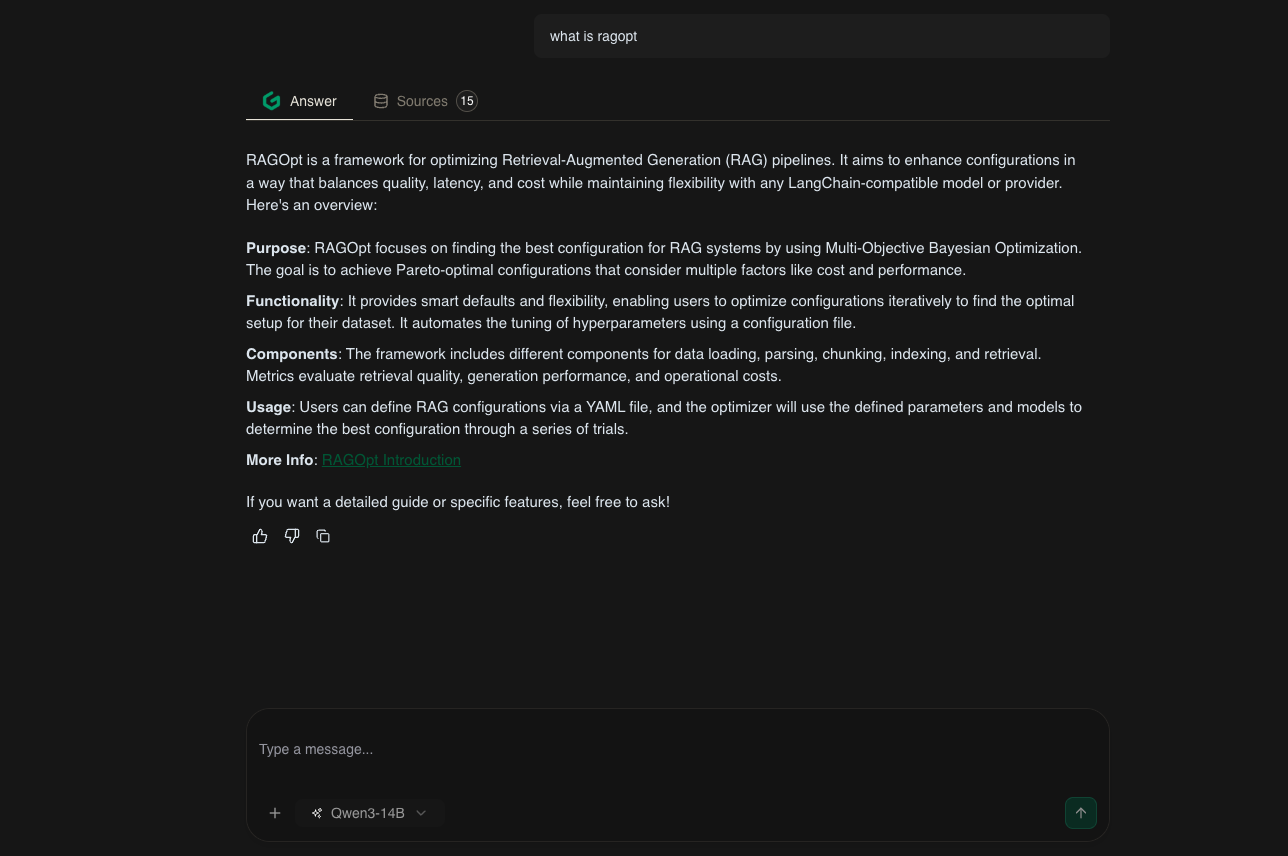 Your agent will automatically use MCP tools when relevant to the conversation.
***
## Using MCP Servers
### Via UI
Navigate to **Tools & MCP Page** and add the servers you need.
Select which projects should have access to each MCP server.
Your agent will automatically use MCP resources when they're relevant to your conversation. No special commands needed.
Use the **Sources** tab to see which MCP servers were called and what data was accessed.
### Via API
You can programmatically manage MCP servers through the API.
Check the [MCP API Reference](/api-reference/mcp/create) for detailed documentation on:
* Adding and removing servers
* Managing server configurations
* Enabling servers for projects
* Monitoring server status
The AI automatically determines when to use MCP resources based on the conversation context and available server capabilities.
Your agent will automatically use MCP tools when relevant to the conversation.
***
## Using MCP Servers
### Via UI
Navigate to **Tools & MCP Page** and add the servers you need.
Select which projects should have access to each MCP server.
Your agent will automatically use MCP resources when they're relevant to your conversation. No special commands needed.
Use the **Sources** tab to see which MCP servers were called and what data was accessed.
### Via API
You can programmatically manage MCP servers through the API.
Check the [MCP API Reference](/api-reference/mcp/create) for detailed documentation on:
* Adding and removing servers
* Managing server configurations
* Enabling servers for projects
* Monitoring server status
The AI automatically determines when to use MCP resources based on the conversation context and available server capabilities.