> ## Documentation Index
> Fetch the complete documentation index at: https://gaia-docs.com/llms.txt
> Use this file to discover all available pages before exploring further.

# API Reference

> Complete API reference for GAIA AI

## Introduction

GAIA AI provides a comprehensive REST API that enables you to:

* **Build AI Applications**: Create intelligent agents with multiple AI providers
* **Manage Knowledge**: Upload and search through documents with RAG capabilities
* **Execute Tools**: Run custom tools and integrate external services
* **OpenAI Compatible**: Use OpenAI-compatible chat completions endpoint
* **MCP Integration**: Connect Model Context Protocol servers for extended functionality

## Authentication

All API requests require authentication using a Bearer token in the Authorization header:

```bash theme={null}
Authorization: Bearer YOUR_API_KEY
```

### Getting Your API Key

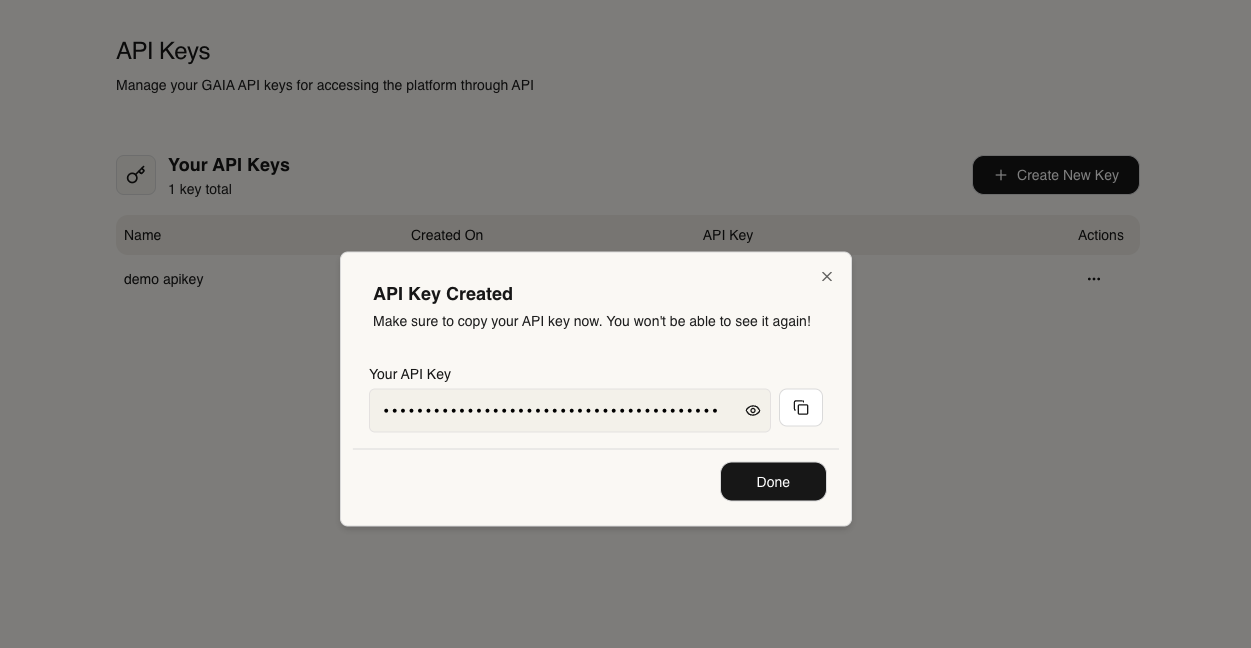
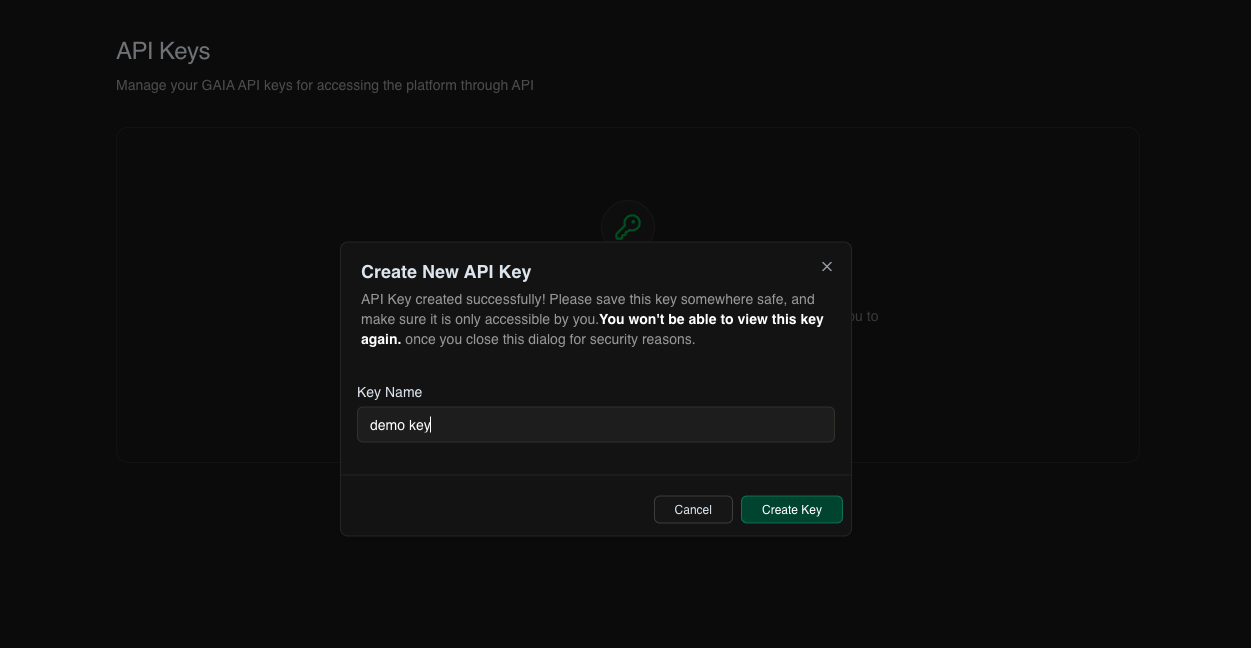
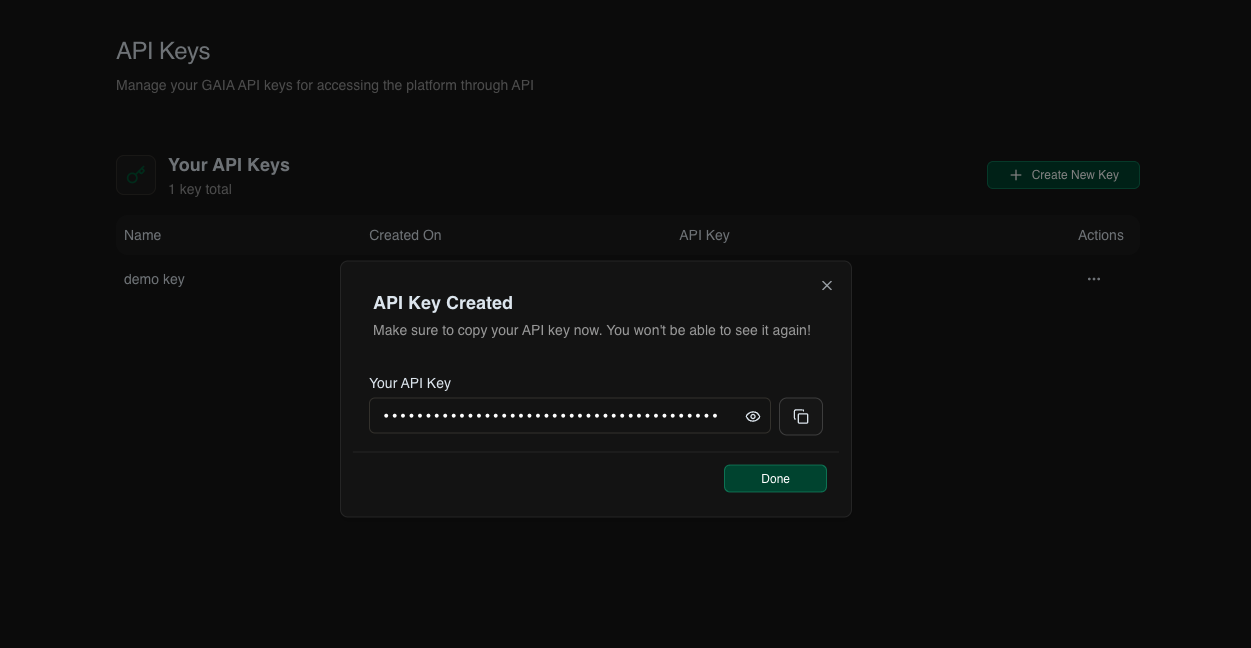
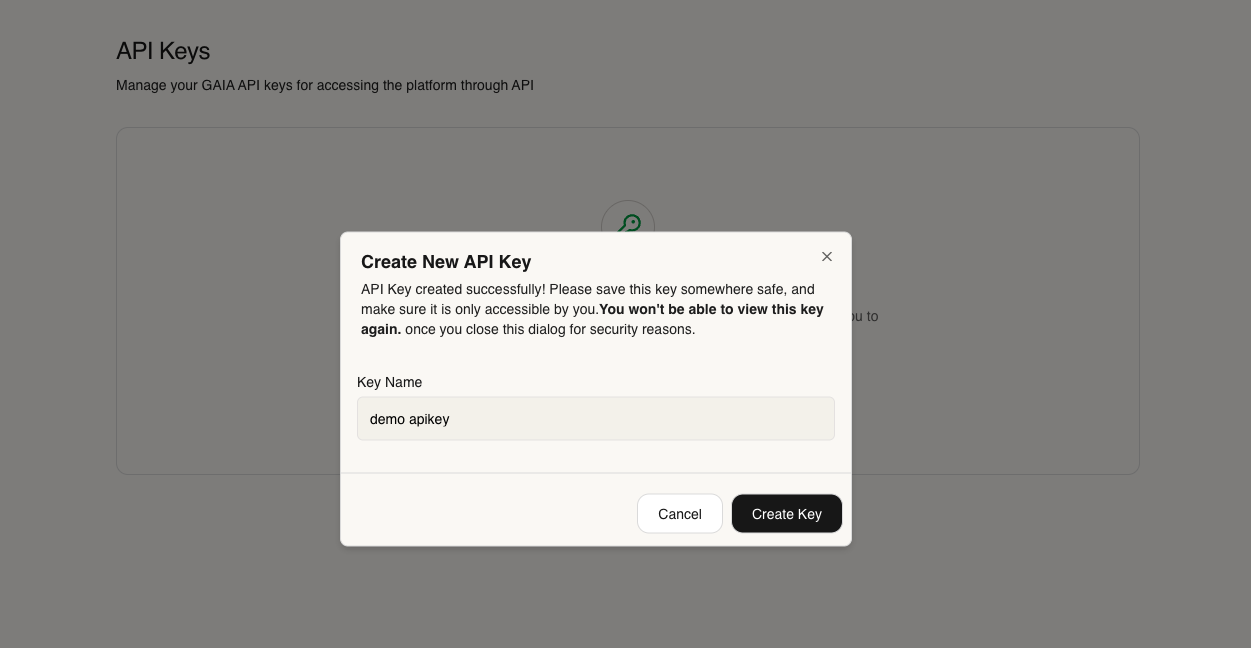
1. Navigate to the **API Keys** page in your GAIA AI dashboard
2. Click **"Create New Key"** button
3. Copy your generated API key and store it securely

<div style={{ display: "grid", gridTemplateColumns: "1fr 1fr", gap: "10px", margin: "20px 0" }}>
  <img className="dark:hidden" src="https://mintcdn.com/tuhh-d1de0e06/0Z-O6yqqGKQmM9NU/images/new-key-light1.png?fit=max&auto=format&n=0Z-O6yqqGKQmM9NU&q=85&s=59258e43e1853cb260e1b23db2a731c4" alt="Create API Key - Light" style={{ width:"100%", borderRadius: "8px", border: "1px solid #e7e5e4" }} width="1251" height="648" data-path="images/new-key-light1.png" />

  <img className="dark:hidden" src="https://mintcdn.com/tuhh-d1de0e06/0Z-O6yqqGKQmM9NU/images/new-key-light2.png?fit=max&auto=format&n=0Z-O6yqqGKQmM9NU&q=85&s=abde7a10edd96263520a3bce55cac0bd" alt="API Key Created - Light" style={{ width:"100%", borderRadius: "8px", border: "1px solid #e7e5e4" }} width="1251" height="648" data-path="images/new-key-light2.png" />

  <img className="hidden dark:block" src="https://mintcdn.com/tuhh-d1de0e06/0Z-O6yqqGKQmM9NU/images/new-key-dark1.png?fit=max&auto=format&n=0Z-O6yqqGKQmM9NU&q=85&s=35ca458b97501dedca10e5fb92488090" alt="Create API Key - Dark" style={{ width:"100%", borderRadius: "8px", border: "1px solid #e7e5e4" }} width="1251" height="648" data-path="images/new-key-dark1.png" />

  <img className="hidden dark:block" src="https://mintcdn.com/tuhh-d1de0e06/0Z-O6yqqGKQmM9NU/images/new-key-dark2.png?fit=max&auto=format&n=0Z-O6yqqGKQmM9NU&q=85&s=871f86cc971ae153d06d3f689e898828" alt="API Key Created - Dark" style={{ width:"100%", borderRadius: "8px", border: "1px solid #e7e5e4" }} width="1251" height="648" data-path="images/new-key-dark2.png" />
</div>

<Warning>
  **Keep your API key secure!** Never commit it to version control or share it publicly.
</Warning>

## Base URL

### Local Development

```bash theme={null}
# Docker deployment
http://localhost:5679/api/v1

# Local development server
http://localhost:3000/api/v1
```

### Production

For production deployments, replace `localhost` with your server address:

```bash theme={null}
https://your-domain.com/api/v1
```

## Using HTTPS with Ngrok

To use GAIA AI with services that require HTTPS (like ChatGPT's "Talk to a website" feature), you need to expose your local instance via ngrok:

### Quick Setup

**Setup ngrok**:
You can check it here [ngrok](https://dashboard.ngrok.com/get-started/setup)

<Tip>
  Your ngrok URL changes each time you restart it. For a permanent URL,
</Tip>

## Available API Routes

<CardGroup cols={2}>
  <Card title="AI" icon="server" href="/api-reference/ai/get-providers">
    Manage AI providers, models, and configurations
  </Card>

  <Card title="Chat" icon="messages" href="/api-reference/chat/completions">
    OpenAI-compatible chat completions and streaming
  </Card>

  <Card title="Projects" icon="folder" href="/api-reference/projects/list">
    Create and manage agent projects
  </Card>

  <Card title="Knowledge" icon="book" href="/api-reference/knowledge/upload">
    Upload, search, and manage knowledge bases
  </Card>

  <Card title="MCP" icon="plug" href="/api-reference/mcp/list-servers">
    Configure Model Context Protocol servers
  </Card>

  <Card title="Tools" icon="wrench" href="/api-reference/tools/list">
    Create and execute custom tools
  </Card>

  <Card title="Credentials" icon="key" href="/api-reference/credentials/list">
    Manage API keys and provider credentials
  </Card>

  <Card title="Ollama" icon="https://images.seeklogo.com/logo-png/59/2/ollama-logo-png_seeklogo-593420.png" href="/api-reference/ollama/list">
    Manage local Ollama models and configurations
  </Card>
</CardGroup>